Showing posts with label Azure. Show all posts

Monday, 20 July 2020

Azure Function URL not working in New Portal

Hi Everyone,

The other day, I was asked by my Test Team to give them an URL to test a Timer Azure Function that triggers on a weekly basis. Unfortunately, we cannot wait for a week to trigger and hence we have changed that to HTTP Trigger Function and given the URL to the Test Team so that they can hit and run on demand.

Immediately got the response from QA Team saying that the URL provided is not working.
Up on investigation, the URL looked like the one in below image with "/api" in the URL but the same URL was populating without "/api" when we browsed the same using Azure Classic Portal.


When we tried the second URL that was without "/api", it was working as expected.
It could be an error on New Azure Portal as the same is working from Azure Classic Portal. Hope it will get fixed in near future.


Hope this helps.

--
Happy Coding
Gopinath.

Thursday, 23 January 2020

Application User creation - Dynamics 365

Hi Everyone,

To create an unlicensed "application user" in your Dynamics 365 organization, follow these steps. This application user will be given access to your organization's data on behalf of the end user who is using your application.

1) Navigate to https://admin.microsoft.com and sign in, or from your D365 organization web page select the application launcher in the top left corner.
2) Choose Admin > Admin centers > Azure Active Directory
3) In the left navigation panel, choose Users and Select + New user
4) In the User form, enter a name and username for the new user and select Create. Make sure the username contains the organization domain URL of your D365 tenant (i.e., someuser@myorg.onmicrosoft.com). You can exit Azure AD now.
Navigate to your D365 organization
5) Navigate to your D365 organization
Navigate to Settings > Security > Users
Choose Application Users in the view filter
Select + New


In the New User form (Application User Form), enter the required information. These values must be identical to those values for the new user you created in the Azure tenant.

User Name - The Username that was created on Azure Active Directory
Application ID - You can get this from the App (Overview section) that is created under App Registrations
Full Name and Primary Email - As your wish.


6) If all goes well, after selecting SAVE, the Application ID URI and Azure AD Object Id fields will auto-populate with their correct values.

7) Before exiting the user form, choose MANAGE ROLES and assign a security role to this application user so that the application user can access the desired organization data. I gave Administrator as a role but you can give the role as per your requirement.

Hope this helps.

--
Happy 365'ing
Gopinath

Thursday, 12 December 2019

Step by Step process to configure Application User for getting Server to Server Authentication


Hi Everyone,

Here are the steps to configure Application User for getting Server to Server Authentication.

Create Azure App on Azure

1) Navigate to https://admin.microsoft.com and sign in, or from your D365 organization web page select the application launcher in the top left corner.
2) Choose Admin > Admin centers > Azure Active Directory
3) From the left panel, choose Azure Active Directory > App registrations
4) Choose + New registration

5) In the Register an application form provide a name for your app, select Accounts in this organizational directory only, and choose Register. A redirect URI is not needed for now.

6) On the Overview page, select API permissions
7) Choose + Add a permission

8) In the Microsoft APIs tab, choose Dynamics CRM

9) In the Request API permission form, select Delegated permissions, check user_impersonation, and select Add permissions

10) Wait for few mins.
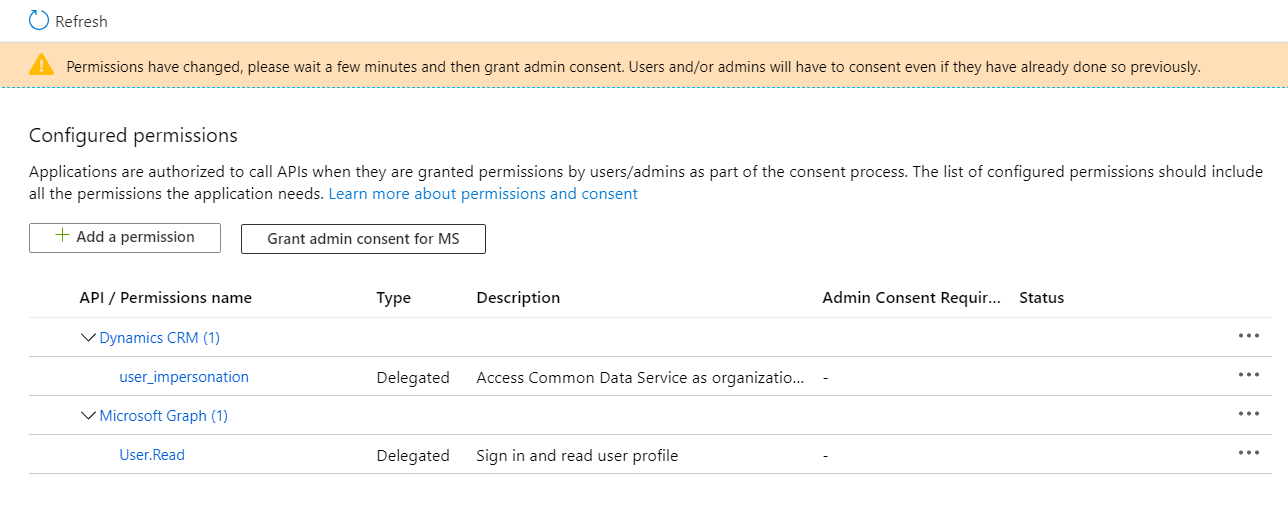
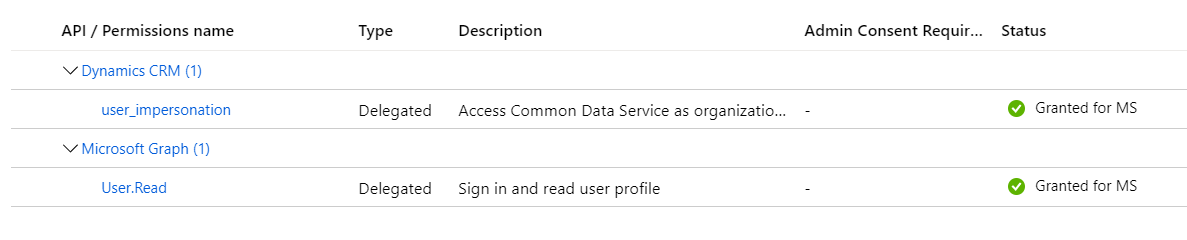
11) On the API permissions page below Grant consent, select Grant admin consent for "org-name" and when prompted choose Yes. In my case, org-name is "MS"


12) In the navigation panel, select Certificates & secrets

13) Below Client secrets, choose + New client secret to create a secret
14) In the form, enter a description and select Add. Record the secret string. You will not be able to view the secret again once you leave the current screen.
15) Select Overview in the navigation panel, record the Display name, Application ID, and Directory ID values of the app registration. You will provide these later in the code sample.

Application User creation

To create an unlicensed "application user" in your Dynamics 365 organization, follow these steps. This application user will be given access to your organization's data on behalf of the end user who is using your application.

1) Navigate to https://admin.microsoft.com and sign in, or from your D365 organization web page select the application launcher in the top left corner.
2) Choose Admin > Admin centers > Azure Active Directory
3) In the left navigation panel, choose Users and Select + New user
4) In the User form, enter a name and username for the new user and select Create. Make sure the username contains the organization domain URL of your D365 tenant (i.e., someuser@myorg.onmicrosoft.com). You can exit Azure AD now.
Navigate to your D365 organization
5) Navigate to your D365 organization
Navigate to Settings > Security > Users
Choose Application Users in the view filter
Select + New

In the New User form (Application User Form), enter the required information. These values must be identical to those values for the new user you created in the Azure tenant.

User Name - The Username that was created on Azure Active Directory
Application ID - You can get this from the App (Overview section) that is created under App Registrations
Full Name and Primary Email - As your wish.


6) If all goes well, after selecting SAVE, the Application ID URI and Azure AD Object Id fields will auto-populate with their correct values.
7) Before exiting the user form, choose MANAGE ROLES and assign a security role to this application user so that the application user can access the desired organization data. I gave Administrator as a role but you can give the role as per your requirement.

Download the sample code from here and test it.

Hope this helps.

--
Happy 365'ing
Gopinath

Wednesday, 22 May 2019

Operation returned an invalid status code 'Forbidden'

Hi

Today I was getting the below error while getting secret value.

Operation returned an invalid status code 'Forbidden'

After some search found that I have added the Web APP to Access Policies but never clicked on Save. Just make sure you have added the application in the Access Policies.

Navigate to Keyvault in Azure --> Open the required Keyvault --> Access Policies and Configure the Policy as below.

Configure form Template : Key, Secret and Certificate Management
Select Principal : Select the Application to which you want to provide access.
Key, Secret and Certificate Permissions : Based on your requirement.

Hope this helps.

--
Happy Coding
Gopinath

Logging in Azure Web APP

Hi,

Today I was developing an Web APP and it was giving an error after I host it on Azure. To understand the error I have log the traces. Here is the way that explains that how we can do that.

We can directly use Trace class (System.Diagnostics.Trace) for write the logs. I have written the below piece of the code as a first line in the method.


System.Diagnostics.Trace.WriteLine("I am getting called...");

Now navigate to your Azure Account --> The app service where you have deployed the Web APP --> Diagnostics Logs.


You have something called "Application Logging (Filesystem)" and you can switch it on. There are four options available there.

Error - Error, Critical
Warning - Warning, Error, Critical
Information - Info, Warning, Error, Critical
Verbose - Trace, Debug, Info, Warning, Error, Critical (all categories)

I normally prefer Verbose as it gives everything.

Now, browse the URL for hitting the action where you have written the tracing.

Navigate to Advance Tools under you AppService and Click on Go


It opens a new tab as below - Click on Debug console and then CMD.


You will see the below screen, click on LogFiles --> Application, you will see the .txt file. Click on Edit icon to see the logs.


Note : For Application logging, you can turn on the file system option temporarily for debugging purposes. This option turns off automatically in 12 hours

--
Happy Coding
Gopinath