Showing posts with label CRM 2015 Update 1. Show all posts

Saturday, 22 August 2015

How to Change the Color of Entity Tiles in the Sitemap?

CRM 2015 Update 1 has given one more feature for us.
 
Now, we can change the color of Entity Tiles in the Sitemap. Here are the steps for it.
 
Microsoft Dynamics CRM > Settings > Customizations and then navigate to the entity you wish to modify
Remove the color from the Color text box and get the colors from here and update it.

Hope this helps

--
Happy CRM'ing
Gopinath

Sunday, 16 August 2015

Older than clause in Dynamics CRM Online Update 1

Microsoft Dynamics CRM Online 2015 Update 1 includes additional versions of the ‘Older Than’ clause in Advanced Find and Fetch XML. 

Previously, Advanced Find included the clause ‘Older than X Months’.

However, with the new enhancement in CRM 2015, your searches can be more versatile. Now, the clause ‘Older than X …’ includes options for Minutes, Days, Weeks, and Years, which allow you to retrieve search results that are targeted and relevant. 

There are many instances where these new clauses can be used, especially when you are needing to look for Service Cases, Marketing Campaigns, and Activities in a specific time frame.


Hope this helps.
--
Happy CRM'ing
Gopinath

ExecuteTransactionRequest in CRM 2015 Update 1

We got one more wonderful and powerful feature from CRM 2015 Update 1. i.e ExecuteTransactionRequest
 
Normally, when we do some web application with SQL or some database as a backend we always make use of powerful feature of database transaction. So that we can get the choice of rollback in case an operation fails.

CRM 2015 Update 1 introduced a new feature ExecuteTransactionRequest.
It takes input as a collection of Organization request like Create, Update, Delete, SetState, Assign, any organization request and have CRM execute them in a transaction. And the response of this request also a collection of responses corresponding to every request.

We can read the response for each of the individual request considering the matching index.
 
OrganizationRequestCollection orgRequestCol = new OrganizationRequestCollection();
Entity entContact = null;
var createRequest = null;
for (int intCount= 0; intCount < 3; intCount++)
{
    entContact = new Entity("contact");
    entContact["name"] = string.Format("Test Contact {0}", intCount);
    createRequest = new CreateRequest() { Target = entContact };
    orgRequestCol.Add(createRequest);
}
ExecuteTransactionRequest execTrans = new ExecuteTransactionRequest()
{
   ReturnResponses = true,
   Requests = orgRequestCol
};
ExecuteTransactionResponse response = (ExecuteTransactionResponse)iService.Execute(execTrans);
 
Note :
  • The maximum allowed batch size is 1000.
  • You put a batch of multiple individual requests into one ExecuteTransaction request, which contain a collection of CRM records that you want CRM server to process as a batch
  • If all records have been successfully processed, the whole batch is committed; otherwise if any of the record fails, the whole batch is rolled back (all or none)
Hope this helps.

--
Happy CRM'ing
Gopinath

Thursday, 13 August 2015

Calculate Age of the record or Days from record creation in CRM 2015 Online

Hi,

Normally we get the requirement of calculating the age of the opportunity record or some other record for reports or analysis. We used to do by some custom code either a scheduled workflow or some scheduled application.

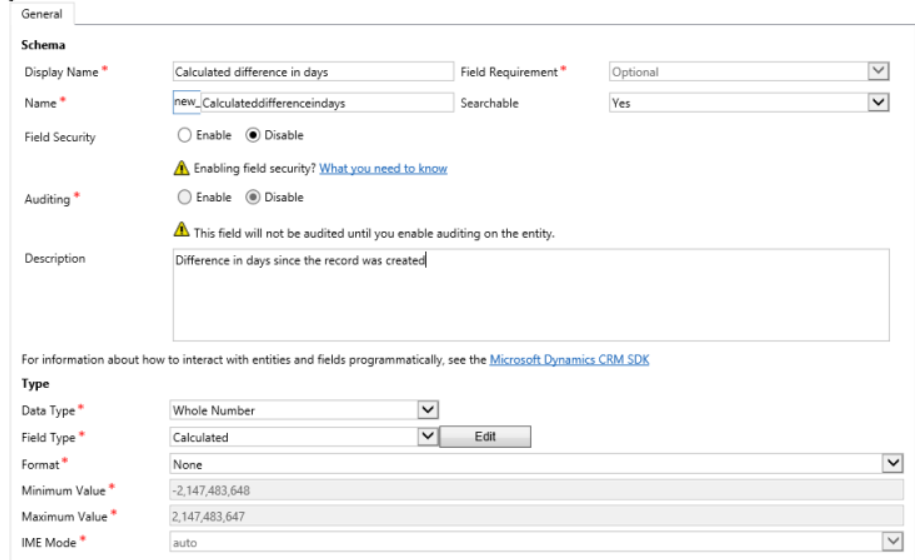
In CRM 2015 Update 1, there is a new thing added to Calculated Fields i.e DIFFINDAYS

We can use this for calculating the age of the record.

Note: The DIFFIN functions were introduced in Microsoft Dynamics CRM Online 2015 Update 1. They aren’t available in Microsoft Dynamics CRM 2015 and Microsoft Dynamics CRM Online 2015 Update.

Hope this helps.

--
Happy CRM'ing
Gopinath

Wednesday, 13 May 2015

Add an Image to Custom Entity

Hi All,

We can add an image to custom entity in CRM. Just follow below steps, it's very simple.
  1. Open the solution that has custom entity
  2. Select Custom entity and create a new field
  3. Enter a display name and then select the type as Image
  4. Click on the name of the entity
  5. You will now see that the Primary image field is populated with your new image field

  6. Navigate to the forms of the custom entity
  7. Open up the form
  8. Click on Form Properties
  9. Click on Display tab and tick the “Show image in the form”


  10. Save and Publish
  11. You will now add an image to a custom entity
Hope this helps.
--
Happy CRM'img
Gopinath. 

Export and Import Themes - MS CRM 2015 Update 1

Hi all,

The amazing thing that was introduced in CRM Update 1 is Themes.

But I see that we cannot add Themes to the solution, so immediately our million dollar question how can we move themes from one organization to other.

Don't worry, you can still move it from one organization to another by using the standard export/import


Hope this helps
--
Happy CRM'img
Gopinath

Tuesday, 12 May 2015

OpenQuickCreate - MS CRM 2015 Update 1

Here is one more new feature which was introduced in CRM 2015 Update 1. i.e openQuickCreate

Now, we can open quick create forms using JavaScript and also the wonderful thing here is You can use this function to set default values using attribute mappings or for specific attributes. If the user saves the record, you can capture a reference to the record created.

For testing purpose, I have created a pick list and written the below code on the change of pick list.

Syntax
Xrm.Utility.openQuickCreate(entityLogicalName,createFromEntity,parameters).then(successCallback, errorCallback);

Here is the JavaScript code

function CreateQuickCreateContact() {
    var account = { entityType: "account", id: Xrm.Page.data.entity.getId() };
    var callback = function (lookup) {
        console.log("Created new account with name" + lookup.savedEntityReference.name + " and id:" + lookup.savedEntityReference.id);
    }
    var errorCallback = function (lookup) {
        console.log("Error");
    }
    var setName = { name: "Child account of " + Xrm.Page.getAttribute("name").getValue() };
    Xrm.Utility.openQuickCreate("account", account, setName).then(callback, errorCallback);
}


I have added this code to trigger on the change of pick list.

On change of the field


If you observe, it opened the quick create form with the name parameter which is passed from java script.


 After the save, a callback function is called.


 --
Happy CRM'img
Gopinath 

Monday, 11 May 2015

CRM 2015 Update 1 - Plugin Trace Log

Hi,

In the earlier vesions of CRM, we used to use ITracingService for tracing the plugin errors and that information is shown in System Jobs.

With the new release of CRM 2015 Update, we can configure CRM to write trace logs to CRM new entity and can be viewed in CRM. By default, CRM Administrators has the permission to view the logs.

Trace logs will only be written to the trace log entities if the plug-in developer uses tracing within the plug-in.

How to Enable Plugin Trace Log
  1. In the CRM Web application, navigate to Settings à Administration
  2. Select System Settings à Customization on the Administration page
  3. In the setting for Plug-In and Custom Workflow Activity Tracking choose one of the below options:
    • Off (default): feature turned off
    • Exceptions: the trace logs will be written to the CRM entities only if the developer returns the exception back to the user.
    • All: the trace logs will be written to the CRM entities whenever the plugin/workflow code is run, regardless of whether an exception is returned.
  4. Click OK to save the settings
 After you enable the feature, we should be able to see the logs in CRM.

View Logs

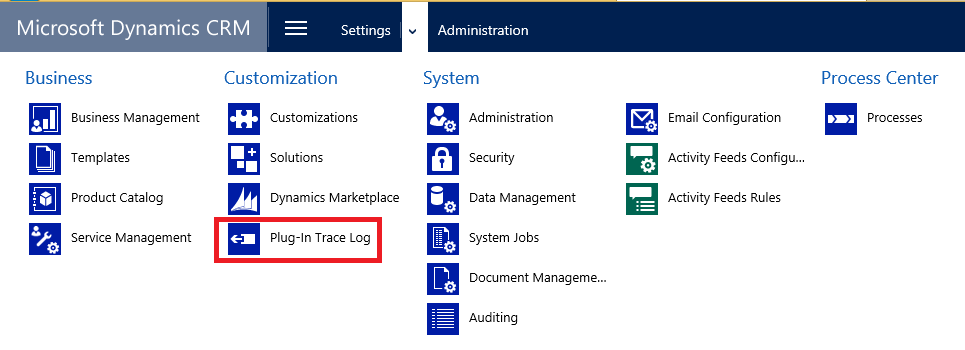
In the CRM, select Settings and under the Customizations menu, select Plug-In Trace Logs.


Now let us see it more in depth by creating a plugin.

Here is my plugin code.

public void Execute(IServiceProvider serviceProvider)
{
    try
    {
         IPluginExecutionContext context = (IPluginExecutionContext) serviceProvider.GetService(typeof(IPluginExecutionContext));
         IOrganizationServiceFactory factory = (IOrganizationServiceFactory)serviceProvider.GetService(typeof(IOrganizationServiceFactory));
         IOrganizationService service = factory.CreateOrganizationService(context.UserId);
         ITracingService tracingService = (ITracingService)serviceProvider.GetService(typeof(ITracingService));
                tracingService.Trace("Trace Start Check");
                throw new Exception("Exception Thrown");
   }
   catch (Exception ex)
   {
 
   }
}

I have registered the plugin on Account update


Opened an account record and updated it. The system has records in Plugin Trace Log and here are the details.


--
Happy CRM'ing
Gopinath 

Get the CRM Version RetrieveVersionRequest

Hi,

One of the good feature in CRM 2015 Update 1 is we can write the code to get the version of CRM.

Here is the code of it

var verRequest = new RetrieveVersionRequest();
RetrieveVersionResponse verResponse = (RetrieveVersionResponse)objService.Execute(verRequest);
var crmVersion = new Version(verResponse.Version);
if (crmVersion >= new Version("7.1"))
{
      // Code
}
else
{
      // Code
}

Get the latest dlls from SDK for accessing "RetrieveVersionRequest" message.

Get Latest SDK

Hope it helps

--
Happy CRM'ing
Gopinath.