Tuesday, 7 June 2016

Document Templates in CRM 2016

Whenever there is an update in CRM, we all know that there will be some exciting features in it.
Dynamics 2016 has brought a new way to represent the data by allowing user to create there own templates. This is almost similar to mail merge but very easy to work and use. Templates can be used for Word and Excel.
Word Templates
Here are steps that shows how to create and update a word template on Opportunity Entity.
Open any opportunity and click on Work Templates as shown in Screen shot.
We can create templates from Templates section too.

Navigate to Settings --> Templates --> Click on New --> Select Word Template and Entity and then click on Select Entity button.

This will open a popup to select the related entity relationships.
Select the relation ship and click on Download Template.

Save and Open the template
The template will be empty. To map CRM attributes, we need to enable Developer settings.
Go to File --> Options --> Customize Ribbon and Select Developer --> Click OK
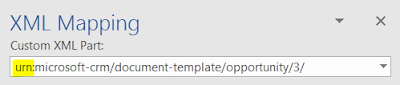
After that select Developer from the Ribbon and click on XML Mapping Pane
Change the Custom XML Part to the link which starts with "urn"
It will display the Entity attributes and relation ship which we have selected while downloading the document template.

Select the fields and right click and select 'Insert Content Control' and create your layout using word tools.

The Associated entity fields are at the button of the list.
Insert a Table on the document with Two Rows (One is Header and other for data mapping)
Select each cell and map the required fields.
The most important part, Select the entire row (all the cells of the row, make sure you don't select  the table or the row from the table border).

Once the entire row is selected, right click the relation ship and select Repeating from Insert Content Control menu.
The table should look like the below screen shot.
Save the document.

Open CRM, navigate to Settings --> Templates --> Document Templates --> Click on Upload Template button. 

Browse the file from your location machine and click on Upload. CRM creates a document template record as below.
Open the record in CRM and Select the Template which you have uploaded as shown in the screen shot.
Here is the document generated for us.
--
Happy CRM'ing
Gopinath

Tuesday, 31 May 2016

Get the list of all properties of a class in C#

Hi,

Today we got a requirement to get the list of all the properties of a class including the values.

Here is a C# code for it.

class Customer
{
     public string FirstName { get; set; }
     public string LastName { get; set; }
     public string MiddleName { get; set; }
}

class Program
{
     static void Main(string[] args)
     {
         // Creating an object for a class
         Customer objCustomer = new Customer();
         objCustomer.FirstName = "John";
         objCustomer.LastName = "Hung";
         objCustomer.MiddleName = "Maro";

         // Reading the properties and displaying the Name and Value.
         foreach (var prop in objCustomer.GetType().GetProperties())
         {
             Console.WriteLine("{0} = {1}", prop.Name, prop.GetValue(objCustomer, null));
         }
         Console.Read();
      }
}

Hope this helps.

--
Happy Coding

Gopinath

Monday, 30 May 2016

Permissions of the User on a record - RetrievePrincipalAccessRequest in CRM 2001//2013/2015/2016


Hi,


Today we got a requirement what are the permissions of the user on a particular record. To fullfill this requirement, there is a SDK message called "RetrievePrincipalAccessRequest"


Here is the sample code of it.

RetrievePrincipalAccessRequest retrieveRequest = new RetrievePrincipalAccessRequest();
// record for which we want to check the access
retrieveRequest.Target = new EntityReference("opportunity", new Guid("A9F18D5F-6A08-E611-80DE-000D3AA03DA0"));
// User or Team entity Reference
retrieveRequest.Principal = new EntityReference("systemuser", new Guid("1C5A2AE8-AD00-E611-80DD-000D3AA03DA0"));
RetrievePrincipalAccessResponse retrieveResponse = (RetrievePrincipalAccessResponse)crmSerivce.Execute(retrieveRequest);


In the response we get the combination of all the rights either through sharing or his own security roles


Hope this helps.

--
Happy CRM'ing

Gopinath

Saturday, 28 May 2016

Retrieve Users/Teams who has access on the record

Hi,

Today, we got a requirement to retrieve list of users/Teams who has access on the record as part of business requirement.

SDK has a message to full fill this requirement. i.e RetrieveSharedPrincipalsAndAccessRequest

Here is the C# sample code for using it.


RetrieveSharedPrincipalsAndAccessRequest req = new RetrieveSharedPrincipalsAndAccessRequest();
req.Target = erfRecord;
RetrieveSharedPrincipalsAndAccessResponse resp = (RetrieveSharedPrincipalsAndAccessResponse)crmService.Execute(req);
foreach(PrincipalAccess prinAccess in resp.PrincipalAccesses)
{
     // prinAccess.AccessMask
     // prinAccess.Principal
}

AccessMask holds the access information
Principal holds the User/Team information.


--
Happy CRM'ing

Gopinath

Friday, 22 April 2016

The expected parameter has not been supplied for the report (Report render failure. Error: The 'CRM_CalendarType' parameter is missing a value)

Hi,
 
Today when we are trying to run the report for one of the user we are getting error saying
 
"The expected parameter has not been supplied for the report."

 
We did check in the Event Viewer and observed the below error message
 
"The expected parameter has not been supplied for the report."
 
I was pretty sure that there some thing we were missing as I was running OOB report.
 
The solution for this issue is very simple as the user does not have read permission for user settings , report not able to retrieve his calendar details (like Year format)
once assign read permission for User settings everything works fine.
 
  • Click Settings , click Administration , and then click Security Roles .
  • Double-click the security role that you use.
  • On the Business Management tab, set the Read privilege of the User Settings entity at least to the Business Unit level.
  • Click Save and Close.
 
Hope this helps.

--
Happy CRM'ing

Gopinath

Thursday, 14 April 2016

Close Opportunity as Lost in CRM 2011/2013/2015/2016

Hi,
 
Here is the code to close an Opportunity as Lost using the MS Dynamics CRM SDK.
 
In this example, I am using LoseOpportunityRequest to close an Opportunity as Lost.

public static void CloseOpportunityAsLose(IOrganizationService crmService, Guid guidOpportunityId)
{
      LoseOpportunityRequest req = new LoseOpportunityRequest();
      Entity opportunityClose = new Entity("opportunityclose");
      opportunityClose.Attributes.Add("opportunityid", new EntityReference("opportunity", guidOpportunityId));
      opportunityClose.Attributes.Add("subject", "Lost the Opportunity!");
      req.OpportunityClose = opportunityClose;
      OptionSetValue osvLostValue = new OptionSetValue();
      osvLostValue.Value = 4;
      req.Status = osvLostValue;
      LoseOpportunityResponse resp = (LoseOpportunityResponse)crmService.Execute(req);
}

Hope this helps.
 
--
Happy CRM'ing

Gopinath


Close Opportunity as Won in CRM 2011/2013/2015/2016

Hi,
 
Here is the code to close an Opportunity as Won using the MS Dynamics CRM SDK.
 
In this example, I am using WinOpportunityRequest to close an Opportunity as Won.

public static void CloseOpportunityAsWon(IOrganizationService crmService, Guid guidOpportunityId)
{
       WinOpportunityRequest req = new WinOpportunityRequest();
       Entity opportunityClose = new Entity("opportunityclose");
       opportunityClose.Attributes.Add("opportunityid", new EntityReference("opportunity", guidOpportunityId));
       opportunityClose.Attributes.Add("subject", "Won the Opportunity!");
       req.OpportunityClose = opportunityClose;
       OptionSetValue osvWon = new OptionSetValue();
       osvWon.Value = 3;
       req.Status = osvWon;
       WinOpportunityResponse resp = (WinOpportunityResponse)crmService.Execute(req);
}

Hope this helps.
 
--
Happy CRM'ing

Gopinath


Tuesday, 12 April 2016

C# Code for Removing Security Role to a User - CRM 2011/2013/2015/2016

Hi,

In the last post we have seen how to assign a security role to the user programmatically.

Here is the code for removing the security roles of the users.

public void RemoveUserSecurityRole(Guid guidSystemUserId, Guid guidSecurityRoleId, IOrganizationService crmService)
{
         // Create new Disassociate Request object for creating a N:N link between User and Security
         DisassociateRequest objDisassociateRequest = new DisassociateRequest();
         // Create related entity reference object for associating relationship
         // we will pass System User record reference of user for which the role is required to be removed 
         objDisassociateRequest.RelatedEntities = new EntityReferenceCollection();
         objDisassociateRequest.RelatedEntities.Add(new EntityReference("systemuser", guidSystemUserId));
        // Create new Relationship object for System User & Security Role entity schema and assigning it 
        // to request relationship property
        objDisassociateRequest.Relationship = new Relationship("systemuserroles_association");
        // Create target entity reference object for associating relationship
        objDisassociateRequest.Target = new EntityReference("role", guidSecurityRoleId);
        // Passing DisassociateRequest object to Crm Service Execute method for removing Security Role to User
        crmService.Execute(objDisassociateRequest);
}

Hope this helps.

--
Happy CRM'ing
Gopinath

C# Code for Assigning Security Role to a User - CRM 2011/2013/2015/2016

Hi,

Today we got a requirement to assign Security Role to a user. We all know that Security Roles are associated with User via N:N relationship and relationship name is systemuserroles_association.

We can use AssociateRequest to assign the security roles to the user programmatically.

Here is the C# code for assigning a security role to a user.

public void AssignSecurityRole(Guid guidSystemUserId, Guid guidSecurityRoleId, IOrganizationService crmService)
{
        // Create new Associate Request object for creating a N:N relationsip between User and Security
        AssociateRequest objAssociateRequest = new AssociateRequest();
        // Create related entity reference object for associating relationship
        // In this case we SystemUser entity reference  
        objAssociateRequest.RelatedEntities = new EntityReferenceCollection();
        objAssociateRequest.RelatedEntities.Add(new EntityReference("systemuser", guidSystemUserId));
        // Create new Relationship object for System User & Security Role entity schema and assigning it 
        // to request relationship property
        objAssociateRequest.Relationship = new Relationship("systemuserroles_association");
        // Create target entity reference object for associating relationship
        objAssociateRequest.Target = new EntityReference("role", guidSecurityRoleId);
        // Passing AssosiateRequest object to Crm Service Execute method for assigning Security Role to User
        crmService.Execute(objAssociateRequest);
}

Hope this helps.

--
Happy CRM'ing

Gopinath