Showing posts with label CanvasApps. Show all posts

Sunday, 19 July 2020

Coalesce in Power apps - Power Platform

Hi Everyone,

As we all know how we Coalesce() function in SQL, it returns the first non-null value in a list.

For example : If we run the below query, will get the results as StatureStack.com

SELECT COALESCE(NULL, NULL, NULL, 'StatureStack.com', NULL, 'mscrmtechie.blogspot.com');

In simple words, it just returns whatever the first non-null value.

In the same way, we can use Coalecse function in Power Apps formulas as well. Today, I have two variables which has been set from different logic and I had to write the formula to get the not null value between two of them. I used below formula to get the not null value between two variables.

Coalesce(variable1, variable2, ...)


Here is more information from Microsoft Docs

Hope this helps.

--
Happy 365'ing
Gopinath.

Monday, 13 July 2020

How to get the count of items in a Collection - Canvas App/Power Apps - Power Platform

Hi Everyone,

Today I was working on CanvasApp and I have to show the count of the items in the  collection on UI. This can be done easily by using the below formula.

CountRows(CollectionName)

I have given Text property of the label as below and here the result is showing the count.


Check this post on how to get and show the Dynamics 365 CE records using flow on Canvas App. 

--
Happy 365'ing
Gopinath

Sunday, 12 July 2020

Get the records from Power Automate (List Records) and display them on the Gallery - Power Platform - Dynamics 365, CDS, Power Automate and Canvas App

Hi Everyone,

In this post, let's try to understand the steps that are needed to get the data from Power Automate using Common Data Service List Records Action and show the same on the Canvas App Gallery.

As a first step, let's build Power Automate to get records from Dynamics 365. 

Take a trigger as a PowerApps as we would calling this flow from Canvas App.

Add Common Data Service Current Environment Connector and List Records step by defining the entity and fields you would like to get.

Run the flow to get the results so that you can generate JSON Schema with that. 
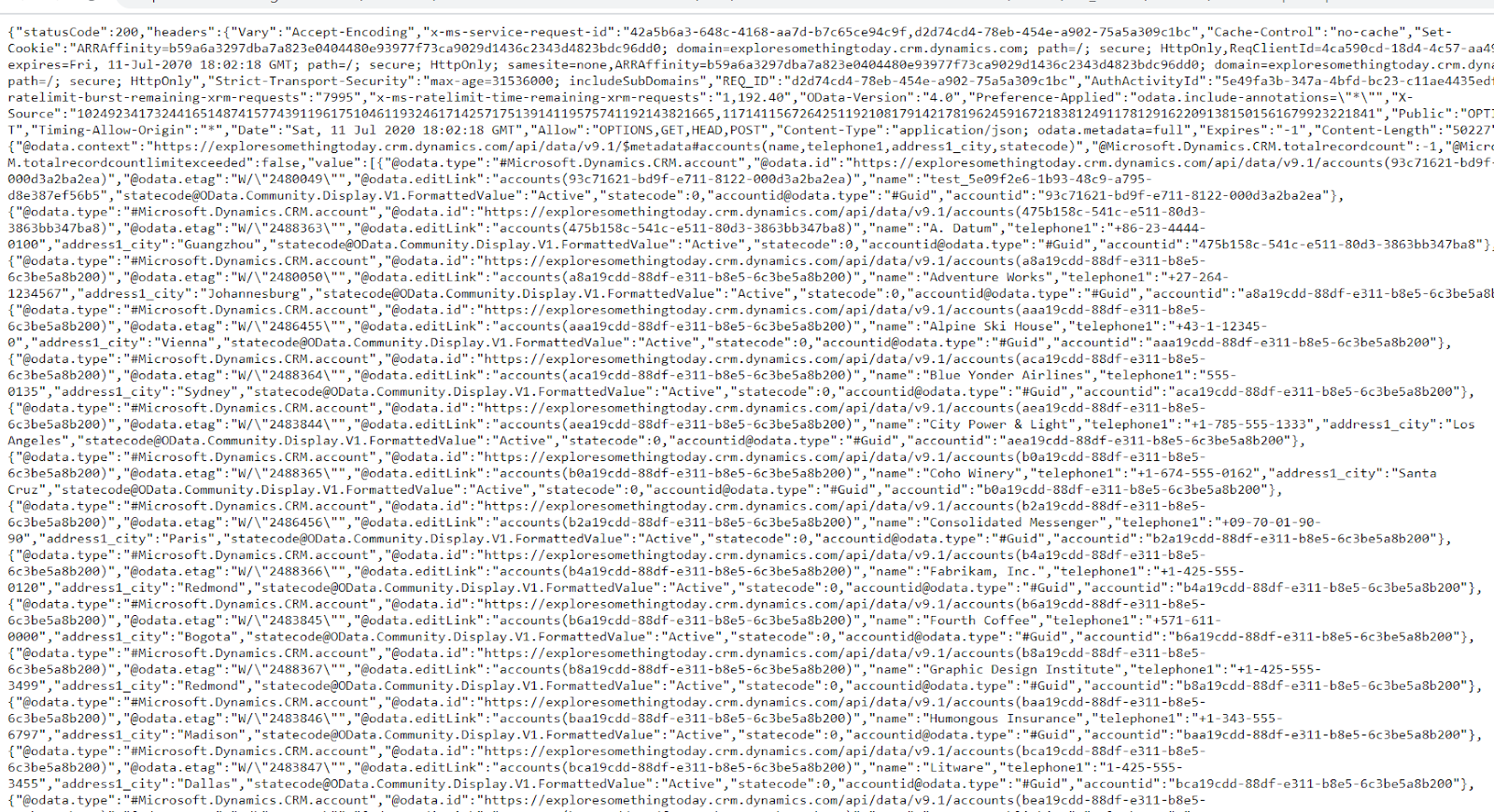
Expand List Records step and click on Download link. It will open the JSON results in the browser window.


Select one record from the result and copy, we will use it to generate schema.

Add Parse JSON step in the flow as next step and take values from List Records steps as an Input to the step.

Click on "Generate from Sample" button on Parse JSON step and put the JSON data that was copied by adding "[" as a starting character and "]" as an ending character so that the result would be converted to an Array.

Once the Schema is generated, make sure you remove the column names in the Required property otherwise your flow would fail with error "Required Properties are missing from object" if some values comes as blank in the result. 


Run the flow once to check the output from Parse JSON step.
The flow ran successfully and you would be able to see the output from Parse JSON step.

Edit the flow and add Response Step, set Body of Response to Body of Parse JSON step.


Click on Show advanced options link and copy the schema from Parse JSON step and put it here.
Save the flow.

Let's create a new Canvas App and add go to Action, Power Automate which will show the list of the flows in your environment.

Select the flow that you would want to use and after adding the flow to Canvas App, provide Parameters if you have any otherwise close the command with parenthesis.

As we need to bind the data to Gallery, we need a Collection object. Let's push the result from flow to a collection. To test the things easily, I have added a button and OnSelect of the button given below statements. This will get the result from flow and assign it to the collection.

ClearCollect(DataFromFlowCollection, GetAccountsFromD365CE.Run());

Let's test it once before we add Gallery to the app. Play the app and click on the button. After the execution, go back to edit mode --> View --> Collections, you can preview the data.

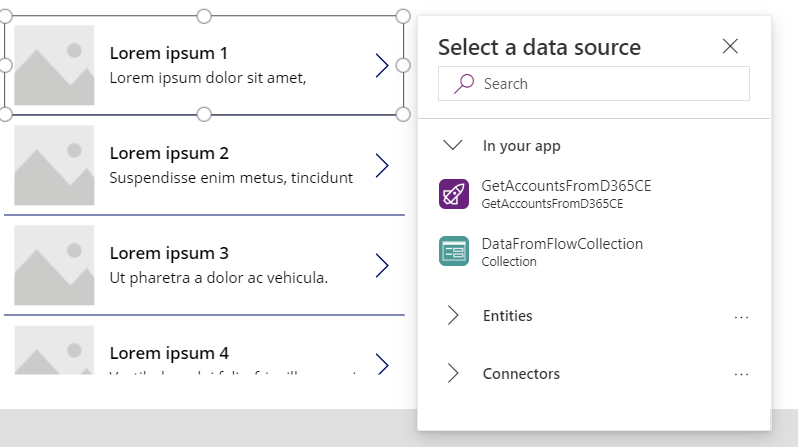
We are able to get the data from flow to CanvasApp, let's add Gallery and bind the collection as a Data Source to it.

You can click on Edit link beside Fields and select which fields you would like to display.

Let's play the App and click on Get Data button to show the data on Gallery.

Hope this helps.

--
Happy App Development
Gopinath

Saturday, 11 July 2020

Set Label Text on a Button Click or Select - Power Platform - Canvas Apps


Hi Everyone,

I have started on PowerApps and as I am newbie on this, I am trying to understand the things clearly before we do.

Today I got a requirement to set the label text to something onclick of a button, oh.. sorry.. onselect of a button(powerapps terminology :)). I thought, it would be the same way of the statement which we are so used and have written below statement onselect.

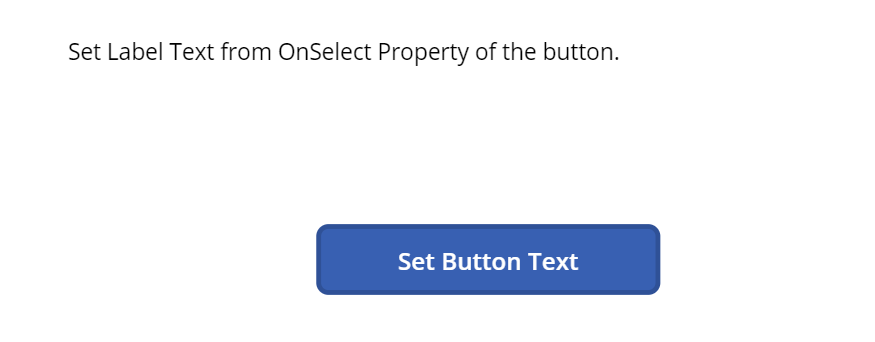
lblTextToShow.Text = "Set Label Text from OnSelect Property of the button."

And, it didn't work. After some search, understood that we cannot change the text directly like above and we have to use a Variable to do the same.

We have to set the Text property of the label to the Variable (Global or Context) and change the value of the Variable OnSelect of the button and label text would change automatically.

On the Form OnVisible property have given the below formula to set the variable value to Blank() and assigned the same variable to Label Text property on OnSelect Property of the button by setting the value that I want.


Hope this helps.

--
Happy App Developing
Gopinath