Hi,
Today we are creating some of the alternate keys in the system for some integrations and observed one of the custom fields which we have created on Contact is not showing up in the Alternate Key list.
Somehow wondered and checked the field. After checking the field, came to know that Field Security was enabled for it and after disabling it, the field is visible in the fields list of alternate key.
For double checking, added that field to the Alternate Key fields list and tried to enable to Field Security and received the error as below.
Also, it makes sense if we enabled to Field Security not all the users doesn't have read access and that way we are breaking the thumb rule of the Alternate Keys.
Hope this helps.
--
Happy CRM'ing
Hi,
A new entity called "Feedback" has been introduced in Dynamics CRM 2016 Update 1. The purpose of adding this entity is to provide the feedback and rating for particular entity in CRM. This is useful for the organizations for tracking the feedback for the product they are selling, or support/services that they are providing to the customers. This Feedback and Rating in Dynamics CRM 2016 helps to improve the product’s quality or customer experience with your organization.
Let us see how we can use this entity.
For using this users must have Read, Create and Update privileges for this entity.
How to Enable and Use?
A new Option "Feedback" is shown on the Entity Information under General tab. Enable it for the Entities where you wanted to use.
You can enable feedback on entities to allow customers to write feedback for any entity record, or rate the entity records within a range of allowed ratings.
By default, feedback is enabled for the Knowledge Article entity and the rollup field is added to Knowledge Article entity.
Once you enable Feedback on the entity, you will that in the Related Entites.
Title: A short title for the Feedback, specifying parameter for response.
Regarding: The Feedback created for the entity.
Source: Here you can select two options, Internal or Portal. For example, if you are capturing the Feedback from within the CRM i.e. through phone or email then you can select Source as Internal. In addition, you can add more options to this field as per your requirement.
Comments: Comments for the Feedback being created.
Rating: A number to specify how useful the product is.
Minimum Rating and Maximum Rating: Define the minimum and maximum rating numbers for the rating scale. For example, in our case, we are using the rating scale as 1-10, then minimum rating as 1 and maximum rating as 10 can be provided.
Normalized Rating: The value for this field is auto calculated, as this is the calculated field. The calculation is done based on the below formula.
Normalized Rating = (Rating – Minimum Rating)/ (Maximum Rating – Minimum Rating)
However, you can change the calculation for the Normalized Rating by changing the formula for this field from Customizations.
Created By (Contact): It is the customer contact on behalf of whom you are creating a feedback.
Closed By: This field gets automatically populated with the user who deactivates the Feedback record.
Closed On: This field gets auto populated with the date and time when the user deactivates the Feedback record.
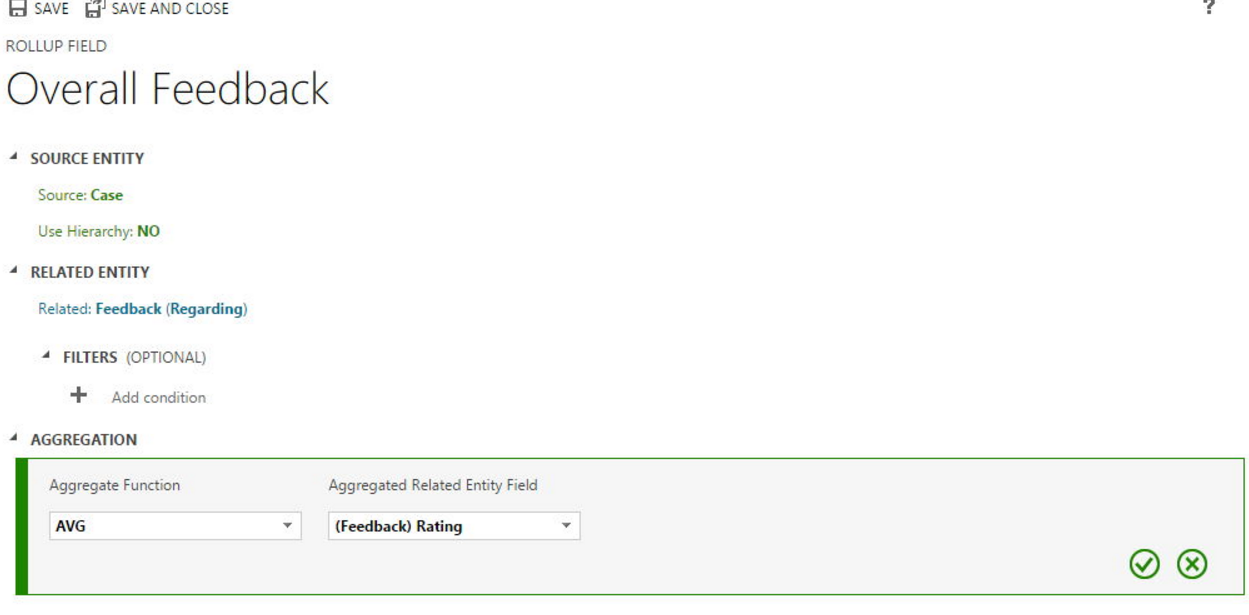
In case, if we have multiple ratings against one particular record, with use of simple rollup field the ratings can be consolidated.
Hope this helps.
--
Happy CRM'ing
Gopinath
Hi,
The release preview guide is now available for downloading. This is a preview guide covering the new features of Microsoft Dynamics CRM 2016.
PDF Download
Release Overview Vedio
Hope this helps.
--
Happy CRM'ing
Gopinath