Showing posts with label OOB. Show all posts

Tuesday, 21 July 2020

Monitor for Model-Driven Apps - Power Platform

Hi Everyone,

It's time to say bye-bye to ask the Users to send fiddler traces as we can monitor every thing from our machine and analyze what exactly we need using Monitor.

Monitor provides you all client-side network of the app on which you can start analysis on the same. I think, it is most useful for the Microsoft Support Team and Product Team as they need the traces from the users to understand the issues and they normally guide with the steps that are needed to log the traces using Fiddler. Now, they can say bye-bye to those and just pass on the URL to the join the monitor debug session and trace everything. However, it would be useful for Technical Consultants as well to understand what is going wrong with the Performance, Script Errors, Form Events etc...

Let's see how it works.

Select the Model-driven app and right click on it, you will see an option as Monitor. 
A new tab will open upon clicking on Monitor button with the button as below.
Hit on Play model-driven app and it opens the App asking you to join the monitor session. If you want, you can join or we can copy the URL and give it to the user to open and perform the actions which they would like to do.
Once the Users join the session, navigate and perform actions whatever you want, you will see the complete traffic from the app is captured in the Monitor window.
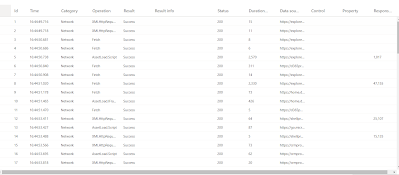
As of now, the following events are supported.
  • KPI for page loads, command executions, and other major events
  • Network request details
  • Warnings for synchronous XHR’s
  • Custom script errors (e.g. onload, ribbon rule evaluation)
  • Form execution event details (e.g. onload, onchange)
  • Form visibility reasons for controls and related menu items
  • Power BI control failure and performance events

Refer PowerApps blog post for more information.

Hope this helps.

--
Happy 365'ing
Gopinath.

Friday, 19 June 2020

Are we saying bye bye to Quick Find Views? Yes - Dynamics 365 CE

Hi Everyone,

Today I was testing some functionality in Dynamics 365 CE Unified Interface and searched for an account, I remembered we have a view named as Quick Find and whenever we do search, the system used to apply the filters from Quick Find view and show the results accordingly.

However, this has been in Unified Interface. When we search, the system honoring the view where we are, applying the same filters and showing the results. For example, If I am on My Active Accounts and do the search, here is the result.
If I do the same search on Classic, here is the result.
However, there is a toggle in System Settings to enable it. By default, the Quick Find Search View is set to No.


Hope this helps.

--
Happy 365'ing
Gopinath

Thursday, 18 June 2020

Increase the limit of ExportToExcel in Dynamics 365 CE - MaxRecordsForExportToExcel

Hi Everyone,

Today I was working with one of the users and they were to looking to export more than 10000 records from Dynamics 365 CE in one go. We all know that this is the limitation in the system. Somehow, I remembered that I have read something on this where we can increase the limit and quick check has shown a way to do.

There is a configuration for this and we can update in a supported way. MaxRecordsForExportToExcel attribute in Organization entity has this information.

We need Organization ID to update this setting, get it from Advanced Settings/Settings --> Customizations --> Developer Resources  --> Instance Reference Information.

Here is the code to update the setting using C# and we can update to the max value of 2147483647 but update it as per your requirement as the huge number might put the load on the system while exporting.


Entity entOrganization = new Entity("organization");
// Get Organization ID from Developer Resources.
entOrganization.Id = new Guid("OrganizationID");
entOrganization.Attributes["maxrecordsforexporttoexcel"] = 500000;
crmService.Update(entOrganization);

Hope this helps.

--
Happy 365'ing
Gopinath

Tuesday, 9 June 2020

Preview Contact and Owner information by just hovering on the lookup - Dynamics 365

Hi Everyone,

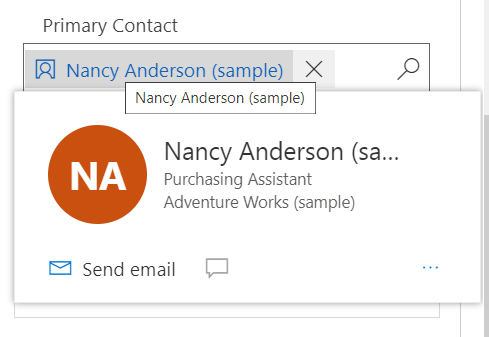
Today I was testing something on the trail instance and I just hovered on the Contact lookup and saw pop out window like below. I haven't observed this so far.

Somehow I am impressed with it as this is giving information to the users by just hovering.

When you click on Show More button, the details are opened as a popup. I couldn't find the form that is being using here to add any of custom fields. If anyone finds, please let me know.

Users can click on Email and Phone links which will open Outlook and or Skype (if it configured else we can pick an app option)

Similarly we can view owner details by hovering on Owner lookup. 

When you click on Update your profile, it opens Delve.

Show more opens the information as a popup like below.

These improvements might not be great functional changes but certainly gives good experience to users and make their lives easier for day to day activities.

If you would like to disable these, there is a setting available in System Settings as below and we can disable it.

"Enable users to view contact cards for quick access to contact information"

Hope this helps.

--
Happy 365'ing
Gopinath

Tuesday, 2 June 2020

Multimedia Control in Dynamics 365 Customer Engagement

Hi Everyone,

We all know visual presentation of anything is attracted first and if it is a video, that gives advantage. If we have a Video that is embedded on the Product record in the system that gives clear path for the sales person to explain the things.

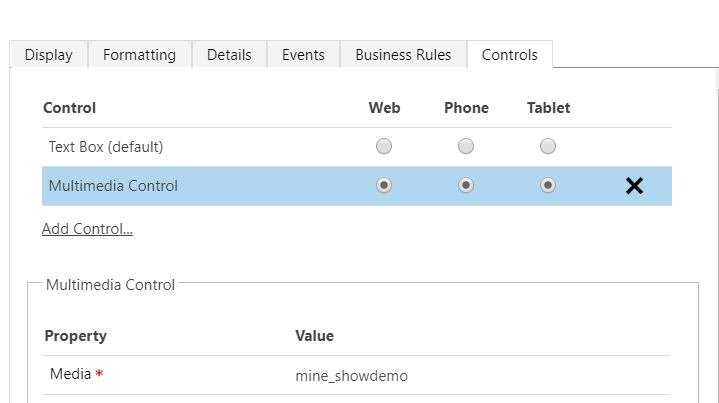
And yes, we can easily do that using Multimedia OOB Control. You just need to create a field of Single line of text and format as URL type and put the Video URL in the field.


Add the field on the form and  --> Change Properties --> Add Control --> Select Multimedia Control and Add it.


Below are the media types that are supported as of now.

Streaming MP4 files
YouTube videos
Azure media
Audio streams

Hope this helps.

--
Happy 365'ing
Gopinath

Number Input Control - Dynamics 365 Customer Engagement

Hi Everyone,

One more good control which can be used in the place of any numerical or money field is Number Input. This gives flexibility to users to tap the plus and minus button to change a numeric value in increments you set.

Just select the numerical or money field for which you would like to convert to Number Input --> Change Properties --> Add Control --> Select Number Input --> Configure the value that you would add or subtract from the current value when you click on + and  - icons.


Hope this helps.

--
Happy 365'ing
Gopinath

Monday, 1 June 2020

Auto-Complete Control in Dynamics 365 Customer Engagement


Hi Everyone,

Today I was going through the Field properties and checked Controls tab. Just to understand more clicked on Add Control link and somehow Auto-Complete Control grabbed my attention.

What is Auto-Complete Control?

This control filters an item list as you type and lets you select a value from the drop-down list. For example, you can use this control to let users choose from a drop-down list of states or countries/regions.

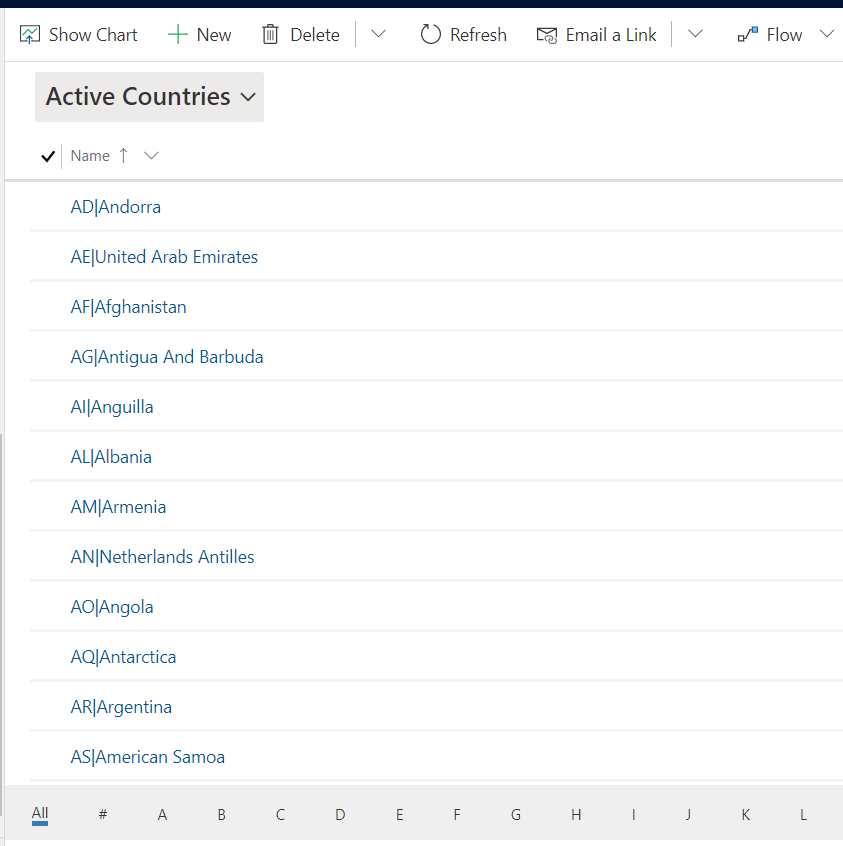
To understand it more, I have created a custom entity named as Countries and loaded the data in it.

 Navigate to the Customizations area and select an Account form to edit. After the form is open, select the "Country" field and click "Change Properties" -> Controls tab  -> Add Control.

Select Auto-Complete and click on Add


You will get the screen to select the properties. First thing, we need to understand is Source here.
We have two options for Source here Option Set and View.

If you choose "Option Set", you will be prompted to choose an option set.

If you choose "View", you will be prompted to choose an Entity and View then we have to choose the field from Source entity.

Click on Ok to save the configurations.
Make sure you select the display options so that Control is shown accordingly.


It shows on UI as below

After knowing this control, I feel this is not utilized much even though it gives good User Experience.

Hope this helps.

--
Happy 365'ing
Gopinath

Tuesday, 26 May 2020

File and Image Data Type Fields in Dynamics 365 Customer Engagement

Hi Everyone,

Today I was creating some fields as per my requirement in Dynamics 365 Customer Engagement and found a datatype as File. I know that File Type was available quite sometime in CDS but it can used only via Canvas App.

To make our lives exited, File Type is available on Model Driven App now. Along with this, we can create multiple fields of type image in single entity. Well there was an Entity Image that has been available for some time now but that only allowed for one single image to be associated with a record.

I have created two fields as below.

Maximum file Size is set to 32 MB by default and it can be extended till 128 MB and this would become read-only after creating a field so choose the correct size while creating the fields.

I have created a tab and place both fields on the form and they are working like a charm.


Hope this helps.

--
Happy 365'ing
Gopinath

Sunday, 16 February 2020

Dynamics 365 - Get the details of Parent record to child using Calculated Field - No Code

Hi,

Today I was working on some requirement to show data from Parent record. Normally, we go with Quick view form but here we need the data to be stored on the child entity so that Advanced find, Reports and integrations shows the same info.

There are two ways to achieve it. We might go with Plugins (Pre-Operation), Flows or Workflows. There is one way to do the same and that is using Calculated Fields.

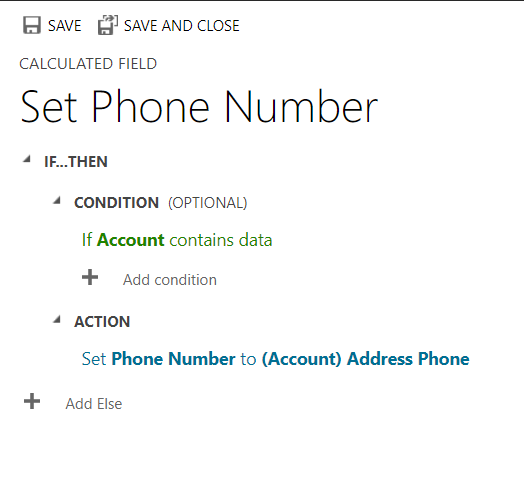
Create a calculated field and use the formula as below.

Condition - If Account Contains Data

Action - Just type the schema name of the lookup on the current entity, in my scenario Parent Account and then put .(dot), you will see the fields from the Parent entity and select the field as per requirement.


The only caveat is, it doesn't work on change of Account value on the Form as the calculated formula works on the retrieval of the data.

Hope this helps.

--
Happy 365'ing
Gopinath

Friday, 7 February 2020

Generate PDF/Send PDF as an Email Attachment - Dynamics 365 CE OOB - No Code - 2020 Release Wave 1 Feature

Hi,

We were building many solutions to generate PDF and send it as an attachment via email. Generating /Creating PDF is one of the most awaiting feature.

Here are the steps for the same.

1) Open Sales Hub APP
2) Navigate to APP Settings - at the bottom of the site map, select Change area , and select App Settings.
3) Under General Settings --> Overview --> Productivity Tools --> Convert to PDF --> Manage

4) Enable the settings on the entities.
4) Select Save.
Now go to Account form/Quote form/anything where the setting is enabled, you will see two buttons 
 
1) Create PDF and then select the Quote Template

It shows two Options 
         a) Save to Share point - It will automatically the PDF to Share Point and you can see it under Document grid of the record.
         b) Download a copy.

2) Email as PDF and then select the Quote Template. Once you select the Template, email record with is populated with the below values.


To - Potential customer of the quote
From - Current user
Attachments - The generated PDF, added as an attachment
Regarding - Quote record from which the email was triggered
Subject - Quote title
Hope this helps.

--
Happy 365'ing
Gopinath