Showing posts with label SQL Server. Show all posts

Friday, 22 May 2020

Query CDS/Dynamics 365 data using SQL Query

Hi Everyone,

You know A SQL data connection is available on the Common Data Service endpoint. Although I am a big fan of FetchXML which makes our lives easier as we don't need to worry about backend things and our powerful Advance Find always helps us to frame Fetch XML in a right way. Sometimes(Debates with Salesforce Team as they always mention that they have SQL Workbench) even I felt that there should be some way in Dynamics as well and finally here it is.

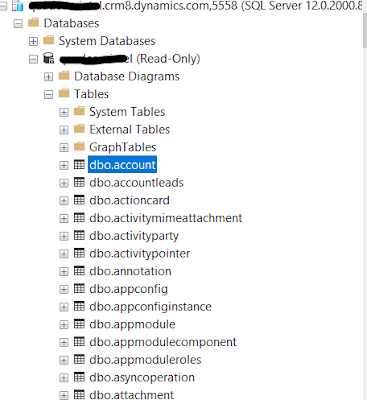
Use SQL to query data (Preview)

This is one of most awaiting feature from many years and is in preview now. 

Points to be considered before you start using it.

1) Download and install 18.4 or latest version of SQL Server Management Studio
2) Only Azure Active Directory Authentication is supported. No SQL and Windows authentication is supported )It completely makes sense as well)
3) Below are the supported operations.

  • Batch operations
  • SELECT
  • Aggregation functions (i.e., Count() and Max() functions)
  • UNIONs and JOINs
  • Filtering

4) No updates/Inserts are allowed as this is a read-only connection.

The following Common Data Service datatypes are not supported with the SQL connection:

binary, image, ntext, sql_variant, varbinary, virtual, HierarchyId, managedproperty, file, xml, partylist, timestamp.

How to connect?
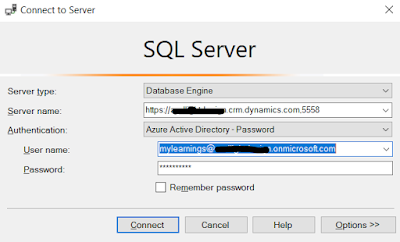
  1. Open SSMS
  2. Give Server name as the organization address URL followed by a comma and the port value of 5558.
  3. Authentication - Azure Active Directory-Password
  4. Give Username and Password

If you receive below error, please follow the steps mentioned here.
And we are good to run SQL queries on CDS.


Hope this helps.

--
Happy 365'ing
Gopinath

Wednesday, 11 November 2015

How to get the records count per table from SQL Server Database?

Hi,

I have started working on Data Migration work. So, started knowing more on SQL Server, Tables, Database Sizes and etc..

Today, I found the way to know the Records count per table and size of each table in the Database.
Here are the steps to follow for getting the details.

1) Logon to SQL Server Management Studio
2) Right-click on the database which you want to know the details.
3) Select Reports -> Standard Reports -> Disk Usage by Table.

4) A report will be loaded in a new tab. This might take a couple of seconds depending on the size of the database.
5) You can export the report to Excel, PDF and Word and perform your analysis on it.
Note : This procedure can be applied for any database. As CRM Database is my favorite, I have taken that as a sample.

Hope this helps.

--
Happy Querying.

Gopinath 

How to check the database size in SQL Server?

Hi,
 
Today, I got know the size of the database. But unfortunately I could not get the correct database size on the file system until I take the back up.
 
Select the database, right click and click on properties.
 
 
In the above image, the size shown 460.81 MB is sum of Data and Log files. It doesn't mean that real size of the database would be the same.
 
I have taken the back up of the database and on the file system the size mentioned was 262 MB.
 
Space Available 90.03 MB is the space that is still available to fill up. Once this space is utilized then SQL Server will allocates new Data space and Log space as per the growth rate set.
 
Use the following query to see the size of Log files and data files individually.
 
SELECT DB_NAME(database_id) AS DatabaseName,
Name AS Logical_Name,
Physical_Name, (size*8)/1024 SizeMB
FROM sys.master_files
WHERE DB_NAME(database_id) = 'DB_NAME'

Output
351 + 109 = 460 MB.
 
Hope this helps.
 
--
Cheers

Gopinath 

Saturday, 31 October 2015

Basic functions of Master, MSDB, Model and Tempdb databases in SQL Server

After a long time, I did open SQL Server Management Studio and connected to a database. Just remembered the basis which I read when I didn't my career.

Master
This database holds information for all databases located on the SQL Server instance and is the glue that holds the engine together. Because SQL Server cannot start without a functioning master database, you must administer this database with care.


Msdb
This database stores information regarding database backups, SQL Agent information, DTS packages, SQL Server jobs, and some replication information such as for log shipping.


Model
This database is essentially a template database used in the creation of any new user database created in the instance.


Tempdb
The tempdb holds temporary objects such as global and local temporary tables and stored procedures.


Hope this helps.
 
--
Cheers,

Gopinath

Thursday, 13 August 2015

Re-install SQL Server Reporting Services

Sometimes there might be need to re-install SQL Server Reporting Services after spending lot of time on an issue. You decide to uninstall  and install it but when you go and search in Control Panel you won't find any component. Here is the way for it.
 
  • Log on to Server with the SQL Reporting Services open the Control Panel
  • Navigate to Programs and Features (Add \ Remove Programs)
  • In the Uninstall or Change a Program list select Microsoft SQL Server 2012 (64-bit)
  • Click the Uninstall\Change option at the top of the list
  • On the SQL Server 2012 Dialog, click Remove
  • On the Setup Support Rules Dialog, click OK
  • On the Select Instance Dialog, assure the correct instance is select and click Next
  • On the Select Features Dialog, place a check mark next to Reporting Services - Native and click Next
  • On the Removal Rules Dialog, click Next
  • On the Ready to Remove Dialog, click Remove
  • On the Complete Dialog, click Close
  • Perform a reboot.
Hope this helps
 
--
Happy Coding
Gopinath

Thursday, 23 July 2015

Login failed for user domain servername$

Hi,

Today, I was working on a webservice which connects to SQL Server Database and inserts some record.
 
My connection string in the config file is as follows.
 
Integrated Security=SSPI;Persist Security Info=False;Initial Catalog=DataBase;Data Source=(local) 
 
Hosted the service on IIS and tried by calling it. The method was failing by throwing the below exception
 
login failed for user domain/servername$
 
Given all the permissions to Network service and one of the user on the DB which the service is connecting but no use.
 
Copied the code to Console Application and executed it. To my surprise, it worked fine. Then by this, I confirmed that the issue was not in the code or connection string and it was something with IIS.
 
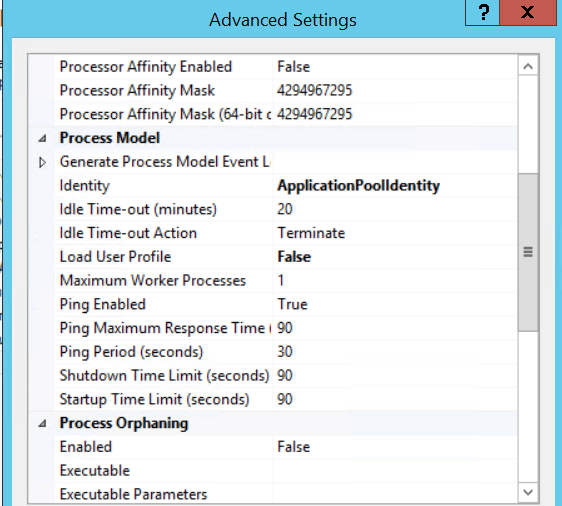
The problem was the Application Pool Identity. The identity was set to the Built-in Account in the Advanced Settings of App pool, instead change it to one of the user account which has access to Database.
 
 
Hope this helps.
 
--
Happy Coding
Gopinath

Monday, 20 April 2015

SQL Server Business Intelligence Development Studio 2008

Hi,

Today, I was working on legacy project where SSIS packages were developed using 2008 Business intelligence. Somehow, I was not able to open the project in the latest version of data tool.

Here is the way to install Business Intelligence Development Studio

  1. Get the SQL server setup file and run the set up file
  2. After the prerequisites check, you will popped up with a window to select features.
  3. Select Business Intelligence over there and click on next, next...

After the installation complete, your machine is ready with BI 2008.

You can follow the same thing for installing any SSDT version. Get the SQL server and select features. That's it.

Hope it helps.

--
Happy Coding
Gopinath.

Monday, 30 March 2015

The word breaker for language 1033 is not installed

Today, when I was installing MS CRM 2011 on the server I got the below error at Microsoft SQL Server

The word breaker for language 1033 is not installed


The solution is simple.

Go back to your SQL Setup file and select new features to SQL Server and select Full text and Semantic Extractions for Search


Even after installing you will get a warning saying

The Word breaker for language -1 is not installed

Just Restart the server machine after you install "Full-text Search" component and then start CRM 2011 installation all over again and the you will notice the Warning is gone.
 --
Happy CRM'ing
Gopinath