Showing posts with label Dynamics 365. Show all posts

Sunday, 19 July 2020

Call Power Automate or Microsoft Flow from JavaScript - Dynamics 365 CE

Hi Everyone,

We all know how Power Automate or Microsoft Flows are changing the way we design the things in Dynamics 365 CE. Recently, we got a requirement to call Microsoft Flow from a button click on Dynamics 365. Here is the way we did using JavaScript.

Let's create a flow as below.

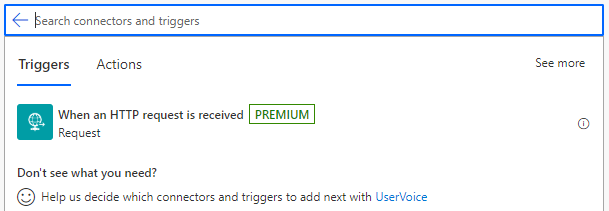
1) Take the trigger as HTTP Request received
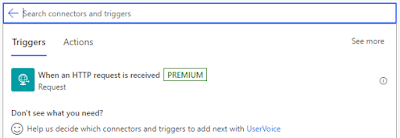
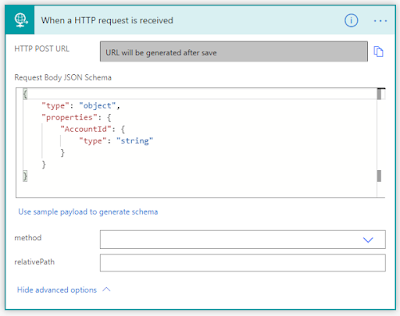
2) Generate Schema accordingly to your input, I just have AccountID as an Input so taken JSON as below to generate schema and declare the method as POST.
{"AccountId": "abc"}

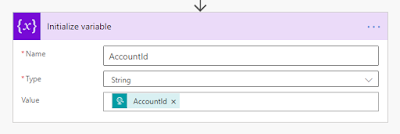
3) I just added one step of Variable as once the flows is triggered from the JavaScript, we can add the steps as per our requirement.
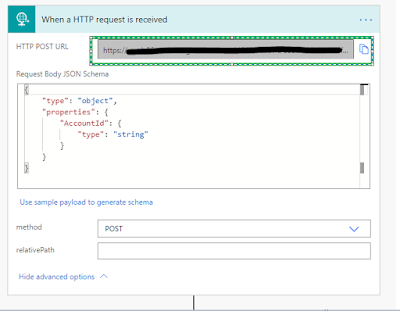
4) Save the flow and get the URL from HTTP Trigger (first step)
5) Here is the JavaScript code for calling flow.
function callFlowFromJavaScript() {
    var flowUrl = "FLOW URL";
    var input = JSON.stringify({
        "AccountId": "475b158c-541c-e511-80d3-3863bb347ba8"
    });
    var req = new XMLHttpRequest();
    req.open("POST", flowUrl, true);
    req.setRequestHeader('Content-Type', 'application/json');
    req.send(input);

}
To Configure Flow URL in a best way, you can read this Post.

Hope this helps.

--
Happy 365'ing
Gopinath.

Friday, 17 July 2020

Canvas App showing loading icon on Dynamics 365 CE forms - Power Platform

Hi Everyone,

Today I was working on simple Canvas App and I have to show it on Model Driven Form on Dynamics 365 CE. I have published the Canvas App, copied the URL and did set to the IFrame on the form. Here is the configuration of the same.

I have saved the Form, Published and navigated to the Account page. To my surprise, it started showing only loading icon.

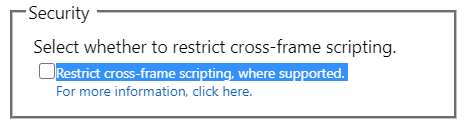
I was thinking something going at the Canvas App side but when I play, it is working fine. Came to the conclusion that certainly some thing from Dynamics side is blocking the content. And finally, it is Cross-frame Script which is blocking the content. After un-checking "Restrict cross-frame scripting, where supported. " checkbox everything started working.

Hope this helps.

--
Happy 365'ing
Gopinath.

Set Canvas App URL on Dynamics 365 CE - Power Platform

Hi Everyone,

Today I was talking to one my friends on the deployment of Canvas Apps that were configured as an IFrame on Model Driven Forms of Dynamics 365. The problem with this is, every time deployment happens the URL would be overridden and we have to manually open the properties of IFrame to set it to the right one.

We can write JavaScript to retrieve the URL  from some configuration/setting entity but every time, the call would be executed which we don't want. Here comes our friend Session Storage to help use.

We have added the piece of code to set the URL that is retrieved as Session Storage item and using it to setSrc instead of retrieving Settings/Configuration record every time. In fact, this solution all configurations whatever we are retrieving, we can use SessionStorage or LocalStorage based on the scenario which will eventually reduces the calls from client side and hence improves the performance. 

The only you should remember is to use Unique Name for the session variable, I normally use combination of OrganizationID and Configuration name.

Here is the code for your reference. First checking for the value in the Session Storage and if it contains value, taking it from there otherwise retrieve it and set to IFrame src as well as SessionStorage item with unique name to use next time.


function setCanvasAppsURL(executionContext, controlName, ConfigName) {
    var organizationSettings = Xrm.Utility.getGlobalContext().organizationSettings;
    var formContext = executionContext.getFormContext();
    var sessionVariable = organizationSettings.organizationId + ConfigName;
    var sessionVariableValue = sessionStorage.getItem(sessionVariable);
    var url = null;
    if (ConfigName != null && sessionVariableValue == null) {
        ///Get config value from configuration
        var globalContext = Xrm.Utility.getGlobalContext();
        var parameters = {};
        parameters.ConfigName = ConfigName;
        var req = new XMLHttpRequest();
        req.open("POST", globalContext.getClientUrl() + "/api/data/v9.1/SettingsEntity", true);
        req.setRequestHeader("Accept", "application/json");
        req.setRequestHeader("Content-Type", "application/json; charset=utf-8");
        req.setRequestHeader("OData-MaxVersion", "4.0");
        req.setRequestHeader("OData-Version", "4.0");
        req.onreadystatechange = function () {
            if (this.readyState == 4) {
                req.onreadystatechange = null;
                if (this.status == 200 || this.status == 204) {
                    if (JSON.parse(this.response).ConfigKey != null) {
                        url = JSON.parse(this.response).ConfigKey;
                        if (url != null) {
                            if (formContext.getControl(controlName) != null && formContext.getControl(controlName) != undefined) {
                                formContext.getControl(controlName).setSrc(url);
                                sessionStorage.setItem(sessionVariable, url);
                            }
                        }
                    } else {
                        console.log("Error");
                        Xrm.Utility.closeProgressIndicator();
                        var alertStrings = {
                            confirmButtonLabel: "Ok", text: "Error : " + JSON.parse(this.response).error.message
                        };
                        Xrm.Navigation.openAlertDialog(alertStrings);
                    }
                }
            }
        };
        req.send(JSON.stringify(parameters));
    }
    else
    {
        formContext.getControl(controlName).setSrc(sessionVariableValue);
    }

}

Hope this helps.

--
Happy 365'ing
Gopinath

Change screen size of Canvas App - Power Platform

Hi Everyone,

Today I was on embedding a Canvas App on Dynamics 365 CE forms using Model Driven Form Integration and while creating the Canvas App, it has opened in the mobile layout but as per my requirement I need tablet layout.

After some search came to know change the layout from File --> Settings --> Screen size + orientation.

Check this link for more information.

Hope this helps.

--
Happy 365'ing
Gopinath.

Thursday, 16 July 2020

Sorry, we didn't find that App - Canvas App on Model Driven Form

Hi Everyone,

Today I did develop a small canvas app and have to show it in a section on Model Driven form (Account form). I have added a IFrame on the Model Driven Form and gave the URL of the Canvas App to IFrame. Published the form in Dynamics 365 CE and refreshed the Account page and clicked on the Tab where I have placed the Canvas App, it displayed as below.

"Sorry, we didn't find that App"

Not sure what went wrong, did check the App, URL and Tenant (thinking, I have created the app in other tenant). Everything was fine but lastly found the issue, I have Saved the app but didn't Publish. After publishing, everything worked fine. It was a silly mistake but took sometime to understand it.

--
Happy 365'ing
Gopinath.

Sunday, 12 July 2020

Get the records from Power Automate (List Records) and display them on the Gallery - Power Platform - Dynamics 365, CDS, Power Automate and Canvas App

Hi Everyone,

In this post, let's try to understand the steps that are needed to get the data from Power Automate using Common Data Service List Records Action and show the same on the Canvas App Gallery.

As a first step, let's build Power Automate to get records from Dynamics 365. 

Take a trigger as a PowerApps as we would calling this flow from Canvas App.

Add Common Data Service Current Environment Connector and List Records step by defining the entity and fields you would like to get.

Run the flow to get the results so that you can generate JSON Schema with that. 
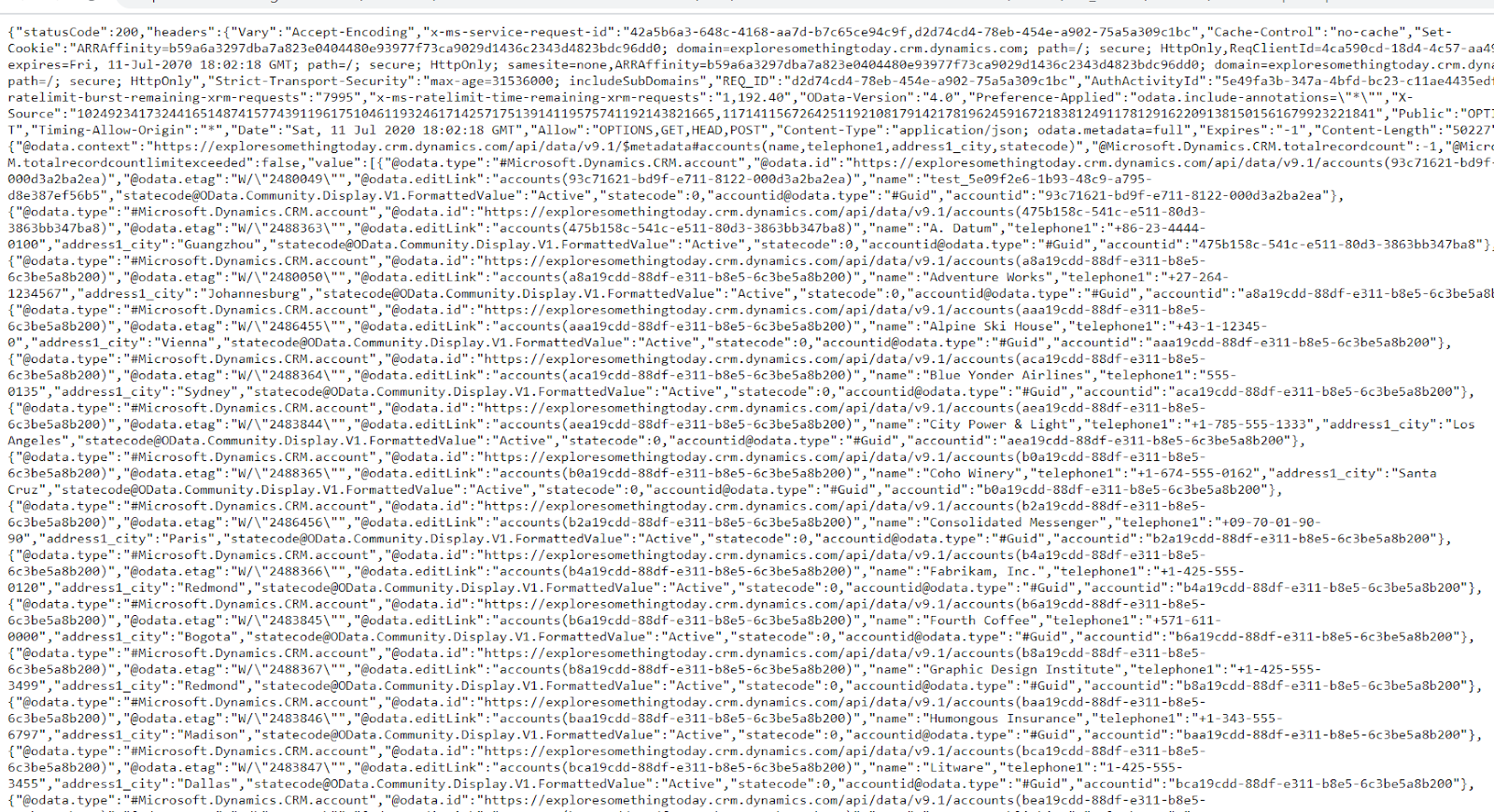
Expand List Records step and click on Download link. It will open the JSON results in the browser window.


Select one record from the result and copy, we will use it to generate schema.

Add Parse JSON step in the flow as next step and take values from List Records steps as an Input to the step.

Click on "Generate from Sample" button on Parse JSON step and put the JSON data that was copied by adding "[" as a starting character and "]" as an ending character so that the result would be converted to an Array.

Once the Schema is generated, make sure you remove the column names in the Required property otherwise your flow would fail with error "Required Properties are missing from object" if some values comes as blank in the result. 


Run the flow once to check the output from Parse JSON step.
The flow ran successfully and you would be able to see the output from Parse JSON step.

Edit the flow and add Response Step, set Body of Response to Body of Parse JSON step.


Click on Show advanced options link and copy the schema from Parse JSON step and put it here.
Save the flow.

Let's create a new Canvas App and add go to Action, Power Automate which will show the list of the flows in your environment.

Select the flow that you would want to use and after adding the flow to Canvas App, provide Parameters if you have any otherwise close the command with parenthesis.

As we need to bind the data to Gallery, we need a Collection object. Let's push the result from flow to a collection. To test the things easily, I have added a button and OnSelect of the button given below statements. This will get the result from flow and assign it to the collection.

ClearCollect(DataFromFlowCollection, GetAccountsFromD365CE.Run());

Let's test it once before we add Gallery to the app. Play the app and click on the button. After the execution, go back to edit mode --> View --> Collections, you can preview the data.

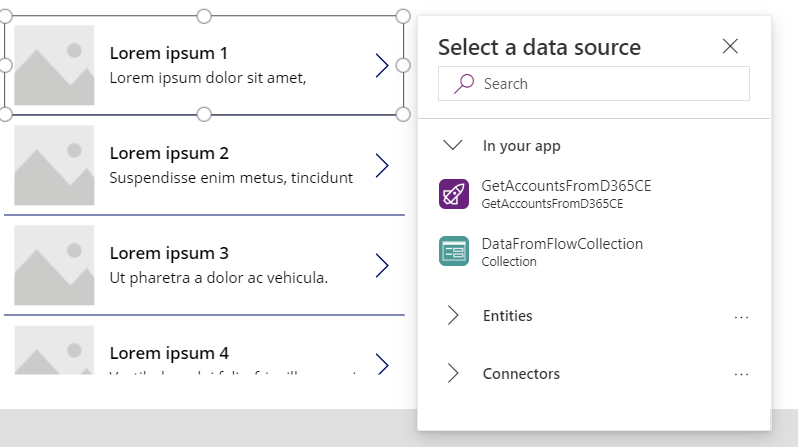
We are able to get the data from flow to CanvasApp, let's add Gallery and bind the collection as a Data Source to it.

You can click on Edit link beside Fields and select which fields you would like to display.

Let's play the App and click on Get Data button to show the data on Gallery.

Hope this helps.

--
Happy App Development
Gopinath

Tuesday, 23 June 2020

The Solution ID is incorrect or missing. Add the correct Solution ID to the URL and try again - Dynamics 365 CE


Hi Everyone,

Today I was getting the below issue when I tried to edit Model Driven App in Make.PowerApps.com (New UI for Solutions) and it is working absolutely fine in Classic Editor.

"The Solution ID is incorrect or missing. Add the correct Solution ID to the URL and try again."

However, to understand more on this, raised a support ticket with Microsoft and continued with my R & D. After spending sometime, found that there is an issue with the URL it is trying to open.


The solution Id is considered as 00000001-0000-0000-0001-00000000009b instead of the Solution ID in which component exists.

This is the URL of the Model Driven App when I opened it from Classic UI.


By the time we analyse this, got a response from Microsoft saying this issue might be due to the missing of "Common Data Service Default Solution" in the environment and they are actively working on the fix and also trying to understand the root cause of it. For now, they have asked to continue with the Classic Editor as a work around.

Hope this helps.

--
Happy 365'ing
Gopinath

Monday, 22 June 2020

Release wave 2020 2 is on the way - Dynamics 365

Hi Everyone,

We are yet understanding good amount of features that were released in Release Wave 1 2020 of Dynamics 365 and we have Release Wave 2020 2 on its way.

July 8, 2020: Release plans available
Learn about the new upcoming capabilities for Dynamics 365 and Power Platform.
August 3, 2020: Early access available
Try the new features and capabilities that will be part of the October update of the 2020 release wave 2 before they are enabled automatically.
October 1, 2020: General availability
This is when the production deployment for the 2020 release wave 2 begins. Regional deployments will commence October 2, 2020.

Keep an eye on this Microsoft Link to get more information.

Hope this helps.

--
Happy 365'ing
Gopinath

Friday, 19 June 2020

Power Platform Analytics - Common Data Service, Power Automate and Power Apps

Hi Everyone,

Today I was going through Power Platform Admin Center and checked Analytics from the navigation. I remembered the days where we used to install Organization insights managed solution and check active/inactive users, storage usage, plugins success rate etc.

Now, we don't need any solution to install and there are lot more useful information to understand the system health from these analytics.

There are three analytics available, check Microsoft Docs (links below) to understand more on the roles that are needed to view the analytics and the information that would be provided.

1) Common Data Service  - Microsoft Docs Link

2) Power Automate  - Microsoft Docs Link

3) Power Apps  - Microsoft Docs Link

Hope this helps.

--
Happy 365'ing
Gopinath

Monday, 25 May 2020

Filtering is getting better - Dynamics 365 CE

Hi Everyone,

Today I was testing some functionality as per my requirement on home page grids and was applying some filters to see the right data. It seems the filtering has been bit improved in the latest version.

I have observed two things.

1) Lookups - When you try to filter on column of type lookup, you will see the list as a drop down and that too very fast. Not sure what kind of query they have applied and when we do, certainly it is not that much fast :)

2) Activities Grid - We can filter by Activity Type now.

These are very small changes but very useful and create good impact to the customers.

Hope this helps.

--
Happy 365'ing
Gopinath

Friday, 1 May 2020

Hide Related Tab on Form - Dynamics 365

Hi Everyone

Today I have created an entity and was checking the configuration to rename the form name. While doing this, have found a setting to hide "Related" Tab on UCI. I still remember the discussions with Customers on explaining this Related tab saying we don't have control on it :).

Related tab is good to have when an entity has relationships with other entities but sometimes you might not need it as entity might be stand alone or a child entity. Here is the setting for hiding the same.

Open the Form Properties of the entity --> Display Tab --> Un-check "Show navigation items", Save and Publish.


Hope this helps.

--
Happy 365'ing
Gopinath

Sunday, 26 April 2020

Get Security Roles of the User - Dynamics 365

Hi Everyone,

Today one of the Developer in my team was stuck with one issue and the issue was about validating users security roles and allowing the user to perform some operation. User was associated with only 2 security roles and the below line of code was giving 4 GUIDs. When we checked the code, whatever he was saying was correct. After few mins, we came to know that this line gets the roles of the Teams where user is associated along with roles that were given to the users.

Xrm.Utility.getGlobalContext().userSettings.securityRoles

Hope this helps.

--
Happy 365'ing
Gopinath

Tuesday, 21 April 2020

Xrm.Navigation.openForm - Open the record with specific Business Process Flow

Hi Everyone,

Today I got some strange requirement that to open the record by setting up to specific Business Process Flow on UI when clicked on the lookup from the child form.

We need to understand multiple new things from doing this.

1) addOnLookupTagClick event - Refer this to understand more about. By this event, we can prevent the default behavior of the click event on lookup.
2) OpenForm - As we all know that we have to use Xrm.Navigation.openForm for opening the records and fortunately we can pass the ProcessId and ProcessInstanceId in the entityFormOptions. In case, if you want to open the record in a specific stage, We have pass stageID.

Here is the piece of code for the same and I have called this code on the load event.

function onLoadOfOpportunity(executionContext) {
    var formContext = executionContext.getFormContext();
    formContext.getControl('new_parentopportunity').addOnLookupTagClick(function (e) {
        e.getEventArgs().preventDefault(); // disables the default behaviour of opening the record
        // Get the lookup record 
        var lookupRecord = e.getEventArgs().getTagValue();
        // Xrm.Navigation.openForm(entityFormOptions, formParameters).then(successCallback, errorCallback);
        var entityFormOptions = {};
        entityFormOptions["entityName"] = "opportunity";
        entityFormOptions["entityId"] = lookupRecord.id;
        entityFormOptions["processId"] = "EC985A4F-E5E2-489F-A13D-4AFBECD6A769";
        entityFormOptions["processInstanceId"] = "F532CF05-8B83-EA11-A811-000D3A3E14C7";
        // Open the form.
        Xrm.Navigation.openForm(entityFormOptions).then(
            function (success) {
                console.log(success);
            },
            function (error) {
                console.log(error);
            });
    });

}

When I open the record from the HomePage grid. You see the process as "Opportunity Sales Process".

The same record if open from the lookup, you see "Second Business Process Flow"


Hope this helps.

--
Happy 365'ing
Gopinath