Showing posts with label Microsoft Flow. Show all posts

Sunday, 30 August 2020

List Records Output not showing in Power Automate/Microsoft Flow

Hi Everyone,

Today I have configured a CDS List Records step in flow to retrieve some records and I have to parse them and do some operation. We all know that for Parse JSON step, we have to give schema. In these type of cases, usually we run the flow first till List Records step and copy the output from that step and give copied output to generate schema in Parse JSON step.

When I was doing the same, unfortunately the list records steps is not showing output and not giving any option to download the result as well. I was kind of stuck with that and by doing quick search came to know that we can Compose Step  give the output the List Records step to Compose step so that we can see the result and use it for generating schema.


Hope this helps

--
Happy 365'ing
Gopinath

Get a single/first record from CDS/Dynamics 365 List Records action step in Power Automate/Microsoft Flow


Hi Everyone,

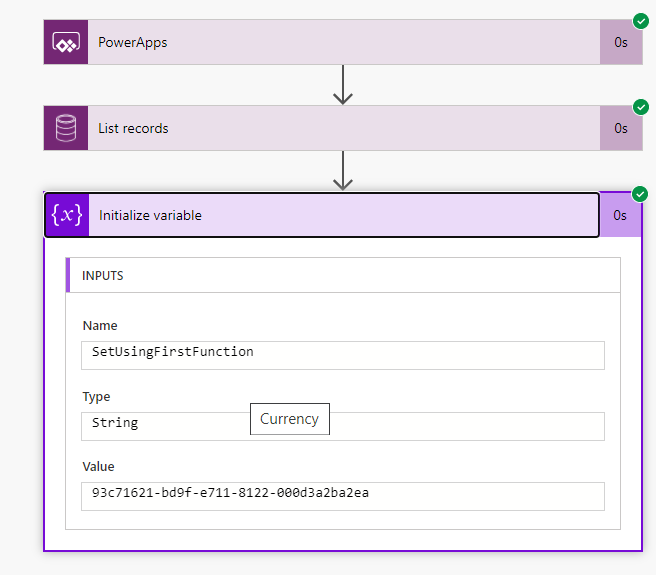
Today I was working on Microsoft Flow and I have List Records step configured in the flow. As per the requirement, I know that the result of the List Records step would be one record or empty. We all know that to get the data from List Record, normally go with Apply to each step as I already know that the output count of records would not be more than 1 taken below approach.

List Records Step  -->  Take the required values using First function.

first(body('List_records')?['value'])?['accountid']

This returns empty string if the count is 0 else the value.


Hope this helps

--
Happy 365'ing
Gopinath

Sunday, 19 July 2020

Call Power Automate or Microsoft Flow from JavaScript - Dynamics 365 CE

Hi Everyone,

We all know how Power Automate or Microsoft Flows are changing the way we design the things in Dynamics 365 CE. Recently, we got a requirement to call Microsoft Flow from a button click on Dynamics 365. Here is the way we did using JavaScript.

Let's create a flow as below.

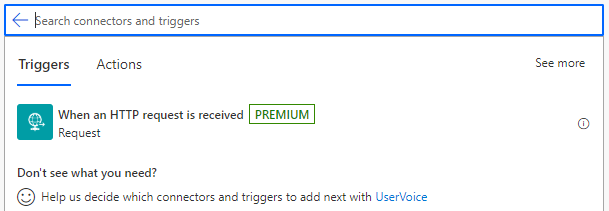
1) Take the trigger as HTTP Request received

2) Generate Schema accordingly to your input, I just have AccountID as an Input so taken JSON as below to generate schema and declare the method as POST.
{"AccountId": "abc"}

3) I just added one step of Variable as once the flows is triggered from the JavaScript, we can add the steps as per our requirement.

4) Save the flow and get the URL from HTTP Trigger (first step)

5) Here is the JavaScript code for calling flow.
function callFlowFromJavaScript() {
    var flowUrl = "FLOW URL";
    var input = JSON.stringify({
        "AccountId": "475b158c-541c-e511-80d3-3863bb347ba8"
    });
    var req = new XMLHttpRequest();
    req.open("POST", flowUrl, true);
    req.setRequestHeader('Content-Type', 'application/json');
    req.send(input);

}
To Configure Flow URL in a best way, you can read this Post.

Hope this helps.

--
Happy 365'ing
Gopinath.

Thursday, 16 July 2020

Invalid type. Expected String but got Null or Invalid type, Expecting Object but got Null - Microsoft Flow/Power Automate

Hi Everyone,

Today I was working on flows and all of a sudden flow started failing with the below error at Parse JSON step.

"Invalid type. Expected String but got Null"

However, was able to understand the issue after checking the input that was passed to Parse JSON step. One of the property value is coming as Null.

The fix is easy, we just need modify the Schema of Parse JSON.

instead of  "type": "string" make it as "type": ["string", "null"] to handle null values.

Hope this helps.

--
Happy 365'ing
Gopinath.

Sunday, 12 July 2020

Required properties are missing from object while parsing JSON in Power Automate or Microsoft Flow

Hi Everyone,

Today I am working on a flow and received below error at ParseJSON Step.

"Required properties are missing from object : property names"


This error is coming as we have specified some of the properties as required in the Schema and as they are not given as an input to Parse JSON, the step is failing while validating the data with schema.

To fix this, we have to edit the schema and remove the properties that were mentioned as Required in the schema. 


If you are 100% clear that you might need the values to pass on, I would be prefer to check the data after parsing it and have your own response step to handle it.

Hope this helps.

--
Happy 365'ing
Gopinath

Monday, 22 June 2020

Make use of Terminate Action in Flow/Power Automate

Hi Everyone,

Today I was talking to one my friends and he asked a question on how to stop the flow execution at a specified some point. I didn't get his question for the first time when I heard. 

Here is the good explanation of it.

Let's say we have a flow that has more than 30 steps and we all know how often requirement changes. I am changing the existing flow and want to execute the flow till 10 steps to understand whether I am going in a right direction or not. In C# or any coding language, we just use return statement to skip the further execution and how can we achieve the same in Flow?

I was wondering if we have any such option and finally Terminate action is the savior here. We can use Terminate Action where we would like to return and run the flow, the execution will be stopped once it reaches to Terminate action. 

Hope this helps.

--
Happy 365'ing
Gopinath

Friday, 19 June 2020

Best Practice - Adding Comments in Power Automate/Flows

Hi Everyone,

Today I was going through the settings of one of the Actions in Flow and have seen "Add a comment".  

We all know the best practice of adding comments in all programming languages and it is the same in Flows as well. As a best practice, let's put few words on what exactly we are doing in the comments. 

Hope this helps.

--
Happy 365'ing
Gopinath

Thursday, 18 June 2020

Get the Count of records in Flow or Power Automate - Dynamics 365 CE

Hi Everyone,

Today I got a requirement to check the record count and do some operation if the count is greater than 1. We are very much used to these kind of checks in C# and just think if we need to the same in Flow.

Here is the way to do. We just need to know one expression for doing it. 

I have a following Action of List Records from CDS connector and renamed it to ListOfAccounts.

Declared an Integer variable and below the expression used for setting the value.

length(body('ListOfAccounts')?['value'])

Once we run the flow, the variable will have the count of accounts that are retrieved by List Records action. We can use same expression in conditions.

Hope this helps.

--
Happy 365'ing
Gopinath

Wednesday, 10 June 2020

Failed during http send request - while adding flow to Canvas App

Hi Everyone,

Today I was working with Flows and Power Apps (Canvas App). I have to invoke Flow from Canvas App button click and I was getting an error as below while add flow to Canvas App.

"Failed during http send request"

Spent good amount of time on understanding and it seems this is happening due to multiple reasons. One thing I came across was if you have a variable of Array data type in flows, you will get this type of issues. However, in my case I don't have anything like this.

To understand more, I have opened browser developer tools to understand what's happening while adding the flow to canvas app and here is the error that was shown in the Network.

{"error":{"code":"NotAllowedConnectionReference","message":"Connection reference 'shared_commondataserviceforapps' can not be given by invoker."}}

By this, I came to know that this is certainly due to the Common Data Service connector. I have used Common Data Service (Current Environment) Connector to do some operation. Removed it and added Common Data Service connector. And you know, it worked.

In my case, replacing Common Data Service (Current Environment) connector with Common Data Service connector solved the issue of adding flow to Canvas app. This seems to be a bug to me, hope Microsoft fixes it ASAP so that we can use capabilities of the Current Environment connector.

For now, I recommend to call the flow with CDS connector from Canvas App and have a child flow with CDS Current environment connector and call in the main flow.

Hope this helps.

--
Happy 365'ing
Gopinath

Saturday, 2 May 2020

Common Data Service vs Common Data Service (Current Environment) - Power Automate

Hi Everyone,

Today one of my team members asked on what are the difference between Common Data Service and Common Data Service (Current Environment) and why I always mention to use CDS Current environment connector. Here is the explanation I gave.

There are 2 connectors available for CDS in Power Automate

1. Common Data Service
2. Common Data Service (Current Environment)

Well, in the above image both names are almost same and how do you differentiate between them? We just have to hover the mouse on it and you will see the name as a tool tip and also there are ...(three dots) at the end of the name mentioning something is hidden in the second icon. If you are not able find Common Data Service (Current Environment) connector, you might be creating Power Automate outside of CDS solution.
There is only trigger for CDS Current Environment as highlighted below and CDS four triggers and I I see one extra trigger "The record is selected". Haven't explored much on it, will come back on this in other post.

Actions and Life cycle management are the huge differences between Current Environment and normal Connector.

CDS - Current Environment
The thing which is most useful in our development scenarios is "Perform an unbound action".  It provides the ability to trigger a Common Data Service (Dynamics 365) action. See screenshot below for examples.

CDS

The important one that makes Current Environment connector unique while managing the Flow Life cycle. The Common Data Service (current environment) connector has an advantage when deploying a solution from one environment to another. e.g. promoting from Dev to Test to Prod through export/import. In this instance, the Common Data Service (current environment) connector automatically connects to the CDS environment that the solution has been imported into. This means that as soon as the solution is deployed the flow can be triggered and will run.

In simple words, use the Common Data Service connector for automating personal tasks that interact with CDS or Dynamics 365 data. Use the Common Data Service (current environment) connector for automating business processes involving CDS or Dynamics 365 where the flow can be promoted through different environments via solution import without any issues.

Hope this helps.

--
Happy 365'ing
Gopinath

Tuesday, 31 March 2020

Be careful while updating Dynamics 365 CE record with Multi select field using Microsoft Flow/Power Automate

Hi Everyone,

I was exploring Microsoft Flows today and was trying to create and update records with different data types. While testing observed that Multi Select values are getting overridden and it is understandable as well. However, we might have to take care it while implementing.

For example, if I am updating a record for which Multi select value is already selected and I would like to select some more. In this scenario if you set the field to consider the new value, the system will remove existing values and updates the record with the value whatever that was set by us. 

Lead - My First Lead has values as Printers for Product Interest.
In flow, I am updating that to Laptops and Mobiles.

After I ran the flow, the previous value "Printers" is no where selected on the record.

To fix this issue, we have to retrieve the record before we update and set Multi-select field with the concatenation of existing values and new values. 

Set the existing value in the variable.
Use Concat function while setting the field. Here the expression which I have used.

Syntax - concat('767070000',',','767070001',',',variables('ProductInterestExistingValues'))Here is the updated record.

Hope this helps.

--
Happy 365'ing
Gopinath

Friday, 27 March 2020

Add Flow Step to Business Process Flow - In Preview - Dynamics 365 CE

Hi Everyone,

Today I was a creating Business Process Flow as per my requirement and noticed a Add Flow Step (Preview) when I was trying to Add a Stage.


Just went ahead and explored it. Added a step and configured a flow to trigger. And you know, it gave me a shock :(. I thought the flow would be triggered automatically instead it has shown a button to trigger on the Business Process Flow.


I think, it should get triggered automatically without any user intervention. As this is still in preview, hoping it would be an automatic trigger once it is GA (Generally Availability).

Hope this helps.

--
Happy 365'ing
Gopinath

Tuesday, 24 March 2020

List Records - Increase the count of the records that are retrieved - Power Automate/Microsoft Flow

Hi Everyone,

Today I was working on the some flow and while testing I have used List Records and intentionally I have not used any filter as I would like to understand the performance. While testing I came to know, the List Records step by default retrieves maximum of 512 records only and the Apply to Each step takes only those 512 records for further processing.

In case if you want retrieve more records, you have to change in the Settings as below.

By default, Pagination would be Off. Turn it on and adjust the limit as per your needs. The maximum you can set is 100000.


Hope this helps.

--
Happy 365'ing
Gopinath

How to get the Iteration count in an Apply to Each Function in Power Automate/Microsoft Flow

Hi Everyone,

Here is the way to get the count of Apply to Each function. 

You can initialize a variable outside of the Apply to Each, then use the Increment Variable inside the Apply To Each to increment it through each iteration.
  

Hope this helps.

--
Happy 365'ing
Gopinath

Monday, 20 January 2020

Phone Call Regarding Object Type in Microsoft Flow - Power Automate

Hi Everyone,

Today I got a requirement to update the Case record when a phone call record is created or update under Case. Yes, it is very simple requirement and we can use OOB Workflow and finish it in 10 minutes. As we all know that workflows are getting deprecated, I started using Flow.

It was fine, I have added all the required steps and below is the condition I have taken for checking the regarding object type but when I was testing it was never satisfying. 

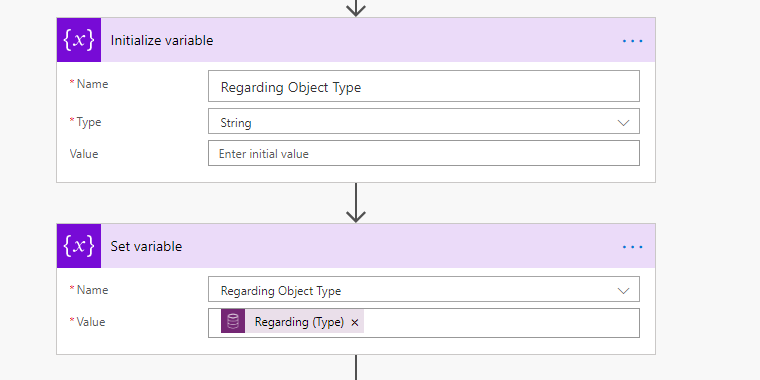
Created two steps as Initialize and Set Variable to understand what exactly the value that is coming to the field.

To my surprise, the result is null and my doors are closed to check the condition.
If I leave it like this, the flow will trigger and every phone call create/update and tries to update the Case and fails if the phone call is not associated with the Case record.

After some search came to know that we have to below expression to check the Regarding Type and it worked for me.

triggerOutputs()?['body/_regardingobjectid_type']

Hope this helps.

--
Happy 365'ing
Gopinath

Thursday, 12 December 2019

Server to Server Authentication in Power Automate (Microsoft Flow) - Service Prinicipal

Hi Everyone,

We all know that how important role that Server to Server Authentication is playing now a days. All CDS connections runs under some user context and sometimes we might have to go with Server to Server Authentication. When we setup Service Principal, it will automatically show the UI to give input of Client ID, Client Secret and Tenant ID. Here are the steps for the same.

Select Common Data Service on Flow and select the required action to perform.

Click on ... and select Add Connection.

Click on Connect with Service Prinicipal and enter the required details.

Here is the Step by Step process to configure Application User for getting Server to Server Authentication.

Hope this helps.

--
Happy 365'ing
Gopinath