Monday, 11 May 2015

CRM 2015 Update 1 - Plugin Trace Log

Hi,

In the earlier vesions of CRM, we used to use ITracingService for tracing the plugin errors and that information is shown in System Jobs.

With the new release of CRM 2015 Update, we can configure CRM to write trace logs to CRM new entity and can be viewed in CRM. By default, CRM Administrators has the permission to view the logs.

Trace logs will only be written to the trace log entities if the plug-in developer uses tracing within the plug-in.

How to Enable Plugin Trace Log
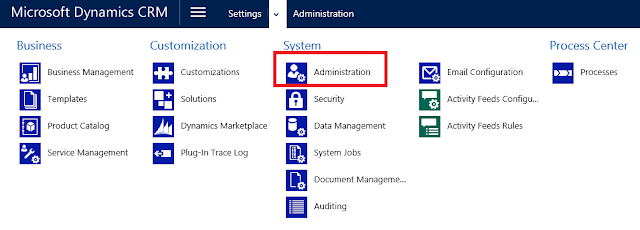
  1. In the CRM Web application, navigate to Settings à Administration
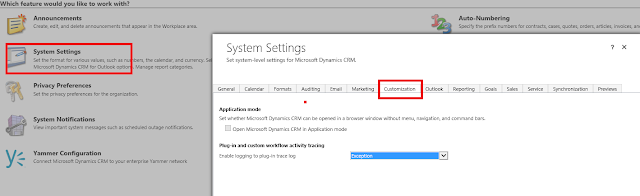
  2. Select System Settings à Customization on the Administration page
  3. In the setting for Plug-In and Custom Workflow Activity Tracking choose one of the below options:
    • Off (default): feature turned off
    • Exceptions: the trace logs will be written to the CRM entities only if the developer returns the exception back to the user.
    • All: the trace logs will be written to the CRM entities whenever the plugin/workflow code is run, regardless of whether an exception is returned.
  4. Click OK to save the settings
 After you enable the feature, we should be able to see the logs in CRM.

View Logs

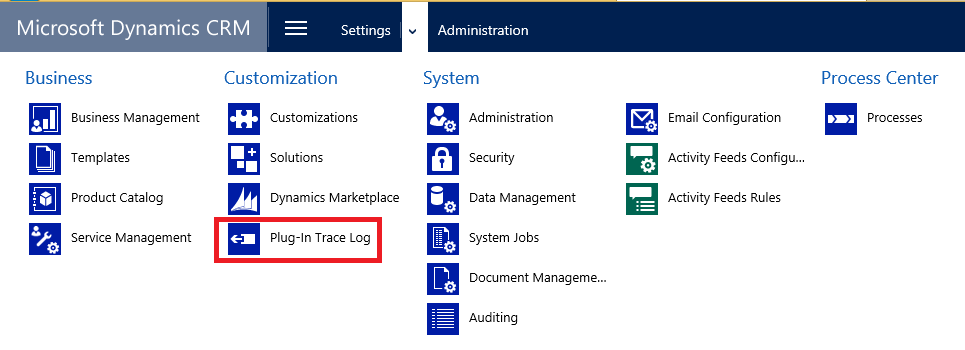
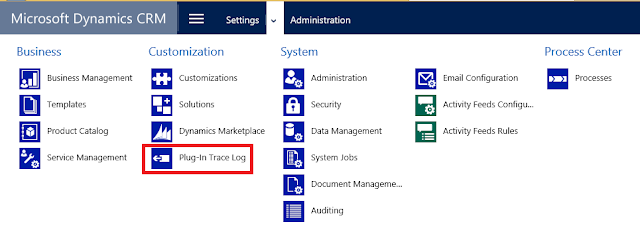
In the CRM, select Settings and under the Customizations menu, select Plug-In Trace Logs.

Now let us see it more in depth by creating a plugin.

Here is my plugin code.

public void Execute(IServiceProvider serviceProvider)
{
    try
    {
         IPluginExecutionContext context = (IPluginExecutionContext) serviceProvider.GetService(typeof(IPluginExecutionContext));
         IOrganizationServiceFactory factory = (IOrganizationServiceFactory)serviceProvider.GetService(typeof(IOrganizationServiceFactory));
         IOrganizationService service = factory.CreateOrganizationService(context.UserId);
         ITracingService tracingService = (ITracingService)serviceProvider.GetService(typeof(ITracingService));
                tracingService.Trace("Trace Start Check");
                throw new Exception("Exception Thrown");
   }
   catch (Exception ex)
   {
 
   }
}

I have registered the plugin on Account update


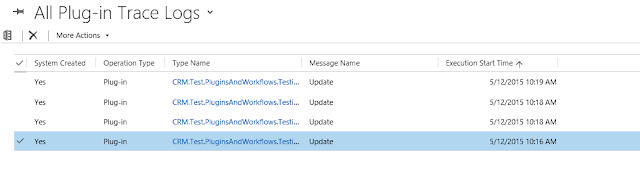
Opened an account record and updated it. The system has records in Plugin Trace Log and here are the details.


--
Happy CRM'ing
Gopinath 

Get the CRM Version RetrieveVersionRequest

Hi,

One of the good feature in CRM 2015 Update 1 is we can write the code to get the version of CRM.

Here is the code of it

var verRequest = new RetrieveVersionRequest();
RetrieveVersionResponse verResponse = (RetrieveVersionResponse)objService.Execute(verRequest);
var crmVersion = new Version(verResponse.Version);
if (crmVersion >= new Version("7.1"))
{
      // Code
}
else
{
      // Code
}

Get the latest dlls from SDK for accessing "RetrieveVersionRequest" message.

Get Latest SDK

Hope it helps

--
Happy CRM'ing
Gopinath.

Friday, 8 May 2015

Understanding Dynamics CRM Licensing 2015

Today when I was searching some licensing things on CRM found a good blog.


Check Understanding Dynamics CRM Licensing 2015 article for more information.

Hope this helps.

--
Happy CRM'ing
Gopinath.

Monday, 4 May 2015

The process cannot access SSIS .ispac because it is being used by another process

Hi,

I recently started working on SSIS packages. It is good experience to work on SSIS and as CRM developer I recommend we should have some basic knowledge on it.

Today I got an error while I was running the package from Visual Studio.


Here is the solution for it.


Just open your Task Manager(Ctrl + Shift + Esc) and search for SSIS Debug host and end them. You will be able to run the SSIS packages as usual.
--
Happy Coding
Gopinath

Monday, 20 April 2015

SQL Server Business Intelligence Development Studio 2008

Hi,

Today, I was working on legacy project where SSIS packages were developed using 2008 Business intelligence. Somehow, I was not able to open the project in the latest version of data tool.

Here is the way to install Business Intelligence Development Studio

  1. Get the SQL server setup file and run the set up file
  2. After the prerequisites check, you will popped up with a window to select features.
  3. Select Business Intelligence over there and click on next, next...

After the installation complete, your machine is ready with BI 2008.

You can follow the same thing for installing any SSDT version. Get the SQL server and select features. That's it.

Hope it helps.

--
Happy Coding
Gopinath.

The dependent component SavedQuery (Id="View GUID") does not exist. Failure trying to associate it with SystemForm (Id="Some Id") as a dependency.

Hi,

Today when I was exporting some solution from one Org to another got an different error.

"The dependent component SavedQuery (Id="View GUID") does not exist. Failure trying to associate it with SystemForm (Id="Some Id") as a dependency. "

Here is the fix for it

  1. Open customizations XML in some editor and search with "View GUID". Found a view is showing multiple view ids in the XML of the sub grid.

  2. Check the XML further to know where the sub grid is placed.
  3. Open CRM form and goto subgrid properties.
  4. Set view selector to Show All Views, save and publish the customizations.
  5. Re-open the same again and set View Selector to Off, save and publish the changes.

That's it. Now, you can export the solution and happily import to another without any issue.

Hope it helps.

--
Happy CRM'img
Gopinath.


Thursday, 16 April 2015

Set Status(Activate/De-activate) of the CRM record

Hi,

We do activate and deactivate CRM record more often. Sometimes, we get the requirement to do the same in the plugin/workflow/some job.

Here is the code for activating and de-activating the CRM record.


private void SetStatus(bool active, string entityName, Guid entityId, IOrganizationService objService)
{
       SetStateRequest objSetStateRequest = new SetStateRequest();
       objSetStateRequest.EntityMoniker = new EntityReference(entityName, entityId);
       if (!active)
       {
             objSetStateRequest.State = new OptionSetValue(1);
             objSetStateRequest.Status = new OptionSetValue(2);
       }
       else
       {
             objSetStateRequest.State = new OptionSetValue(0);
             objSetStateRequest.Status = new OptionSetValue(1);
       }
       SetStateResponse objSetStateResponse = (SetStateResponse)objService.Execute(objSetStateRequest);
}

Hope this helps

--
Happy CRM'ing
Gopinath

Set PartyList using JavaScript in CRM

Hi,

Here is the code to set the party list values using java script.

Party List is a data type in CRM, using which you can set more than one records of an entity for a single field.
Part List type field, renders as Lookup on the form, but it works as multi select lookup

   var partyRequired = Xrm.Page.getAttribute("to");
    // Create new array
    var partlist = new Array();
    partlist[0] = new Object();
    partlist[0].id = Id; //Guid (i.e., Guid of User or Contact etc)
    partlist[0].name = "Name"; //Name (i.e., Name of User or Contact etc)
    partlist[0].entityType = "systemuser"; //entity schema name of account or contact
    // Set array value
    partyRequired.setValue(partlist);


Hope this helps

--
Happy CRM'img
Gopinath 

Monday, 13 April 2015

Form types and modes in Dynamics CRM 2013/2015

getSaveMode(), returns a value indicating how the save event was initiated by the user.

execContext.getEventArgs().getSaveMode();


Event Mode

Value

Save

1

Save and Close

2

Deactivate

5

Reactivate

6

Send (Email)

7

Disqualify (Lead)

15

Qualify (Lead)

16

Assign (user or team owned entities)

47

Save as Completed (Activities)

58

Save and New

59

AutoSave

70
 
getFormType(): Method to get the form type for the record.

Xrm.Page.ui.getFormType();


Form Type

Value

Undefined

0

Create

1

Update

2

Read Only

3

Disabled

4

Quick Create

5

Bulk Edit

6

Read Optimized

11

--
Happy CRM'img
Gopinath.

Thursday, 9 April 2015

Convert QueryExpression to Fetch XML or FetchXML to QueryExpression

Here is the way to convert to Query Expression to Fetch XML or Fetch XML to Query Expression.


QueryExpression objQueryExpression = new QueryExpression("account");
objQueryExpression.ColumnSet = new ColumnSet("accountid");
// QueryExpression To Fetch XML Conversion.
var queryExpToFetchRequest = new QueryExpressionToFetchXmlRequest
{
       Query = objQueryExpression
};
var conversionResponse = (QueryExpressionToFetchXmlResponse)objService.Execute(queryExpToFetchRequest);
string fetchXml = conversionResponse.FetchXml;
string strTestFetchXML = "<fetch distinct='false' no-lock='false' mapping='logical'><entity name='account'><attribute name='accountid' /></entity></fetch>";

// Fetch XML To QueryExpression Conversion.
var fetchToQueryExpressionRequest = new FetchXmlToQueryExpressionRequest
{
       FetchXml = strTestFetchXML
};
var fetchToQueryExpressionResponse = (FetchXmlToQueryExpressionResponse)objService.Execute(fetchToQueryExpressionRequest);
QueryExpression objQueryExp = fetchToQueryExpressionResponse.Query;


--
Happy CRM'img
Gopinath

Wednesday, 8 April 2015

New Features in Microsoft Dynamics CRM 2015 – Update 1 or code name “Carina”

Here are some new features in MS CRM 2015 (Carina)

Themes 
How to apply themes
1) Go to Settings–>Customization
2) Click “Themes”
3) Select the CRM default theme, then click “Clone” to make a copy of the default theme.
4) Change the value for Header Color to HTML color code #6699CC

Export and Import
At last with CRM 2015 online Update 1 or Code name "Carina", we got an answer to many customers question about the Advance Find Export option.

The record limitation for both import and export has been increased to 100,000 records or 32MB! Yes you read that correctly, this has been increased from 10,000 to 100,000 records.

New Navigation
Check this video for more information on the navigation


--
Happy CRM'img
Gopinath

CRM 2015 Export and Import


At last with CRM 2015 online Update 1 or Code name "Carina", we got an answer to many customers question about the Advance Find Export option.

The record limitation for both import and export has been increased to 100,000 records or 32MB! Yes you read that correctly, this has been increased from 10,000 to 100,000 records.

--
Happy CRM'img
Gopinath

CRM 2015 Online Spring ’15 Updates with UI themes

CRM 2015 online Update 1 or Code name "Carina" is coming up with new navigation and user interface.

How to apply themes

  1. Go to Settings–>Customization
  2. Click “Themes”
  3. Select the CRM default theme, then click “Clone” to make a copy of the default theme.
  4. Change the value for Header Color to HTML color code #6699CC
--
Happy CRM'ing
Gopinath.

Friday, 3 April 2015

Customize PartyList in CRM 2013 and 2015

We used to customize partylist in CRM 2011 by using the following code.

lookuptypeIcons = '/_imgs/ico_16_2.gif:/_imgs/ico_16_8.gif';
lookuptypenames = 'contact:2:Contact,systemuser:8:User';
lookuptypes = '2,8';
if (crmForm.all.to != null) {
       crmForm.all.to.setAttribute("defaulttype", "2");
       crmForm.all.to.setAttribute("lookuptypes", lookuptypes);
       crmForm.all.to.setAttribute("lookuptypenames", lookuptypenames);
       crmForm.all.to.setAttribute("lookuptypeIcons", lookuptypeIcons);
       Xrm.Page.getControl("to").setDefaultView("A2D479C5-53E3-4C69-ADDD-802327E67A0D"); //GUId for  default View 
}

This code won't work in CRM 2013 and 2015 but we can achieve same functionality by write the code on the focus of the field


$("#to").focus(function () {
    var toLookUp = $("img[attrName='to']");
    var lookuptypeIcons = '/_imgs/ico_16_2.gif?ver=828891367:/_imgs/ico_16_8.gif??ver=828891367';
  var lookuptypenames = 'contact:2:Contact,systemuser:8:User';
    lookuptypes = '2,8';
    if (toLookUp.length > 0) {
        toLookUp[0].setAttribute("lookuptypenames", "contact:2:Individual,systemuser:8:User");
        toLookUp[0].setAttribute("lookuptypes", "2,8");
        toLookUp[0].setAttribute("lookuptypeIcons", lookuptypeIcons);
        toLookUp[0].setAttribute("createpermissiondictionary", "contact:true,systemuser:true");
        toLookUp[0].setAttribute("DefaultViewId", "A2D479C5-53E3-4C69-ADDD-802327E67A0D");
        toLookUp[0].setAttribute("defaulttype", 2);
    }
});


--
Happy CRM'img
Gopinath

Monday, 30 March 2015

The word breaker for language 1033 is not installed

Today, when I was installing MS CRM 2011 on the server I got the below error at Microsoft SQL Server

The word breaker for language 1033 is not installed


The solution is simple.

Go back to your SQL Setup file and select new features to SQL Server and select Full text and Semantic Extractions for Search


Even after installing you will get a warning saying

The Word breaker for language -1 is not installed

Just Restart the server machine after you install "Full-text Search" component and then start CRM 2011 installation all over again and the you will notice the Warning is gone.
 --
Happy CRM'ing
Gopinath

Thursday, 26 March 2015

Refresh SubGrid from JavaScript in CRM 2011, 2013 and 2015

We can refresh the subgrid on the form using JavaScript. Can use the same code on ribbon button click or onchange or wherever depending on the requirement.
 
Xrm.Page.ui.controls.get("SubGridName").refresh();

Here is the way to get the name of the subgrid.


--
Happy CRM'img
Gopinath.